Choosing and Customizing Mail Designs
📂 Step 1: Browse the Letter Gallery
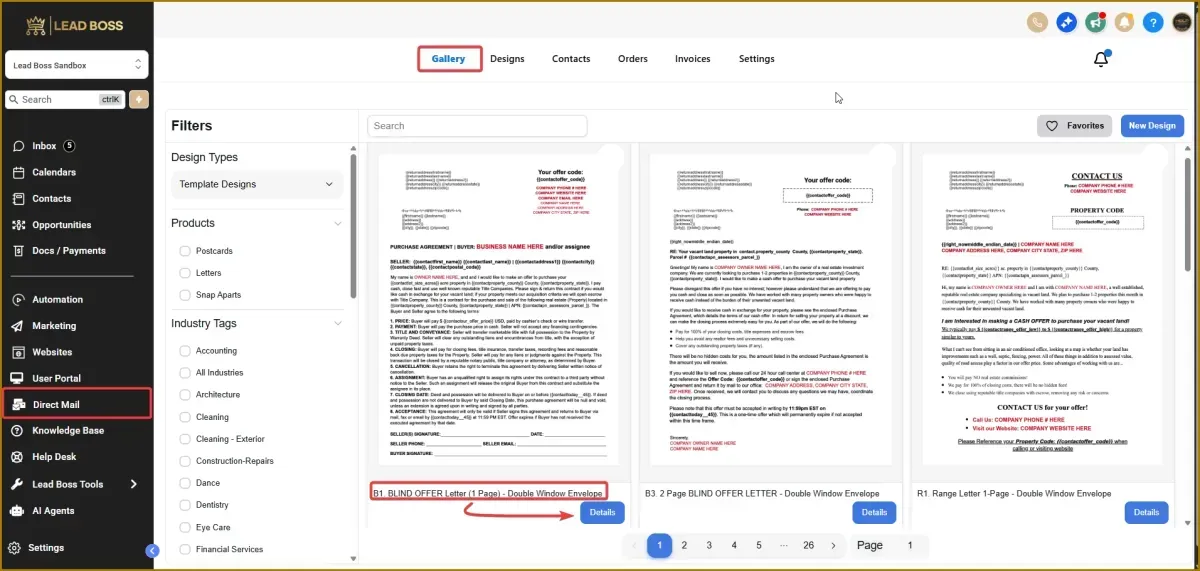
1️⃣ Navigate to the Gallery tab in the Direct Mail section.
2️⃣ Browse the available letter designs and templates.
3️⃣ Tap the Heart icon on any design to mark it as a favorite for quick access later.
📄 Step 2: Select a Letter Template
1️⃣ Once you find a letter you want to use, click the Details tab for that specific design.
2️⃣ This will open the letter setup page, where you can review the template and proceed with customization.
📮 Step 3: Choose a Postcard (Optional)
If you prefer to send a postcard instead of a letter:
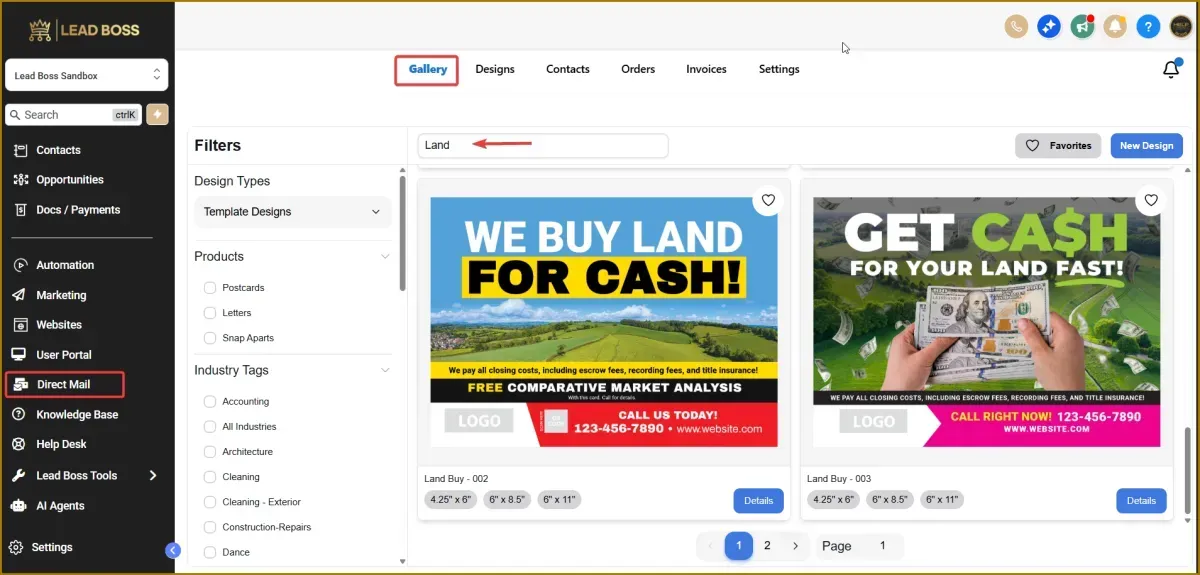
1️⃣ Use the Search bar in the Gallery.
2️⃣ Type “Land” in the search field.
3️⃣ Browse the available postcard templates.
4️⃣ Select the postcard you want to use.
🎨 Step 4: Customize Your Letter Design
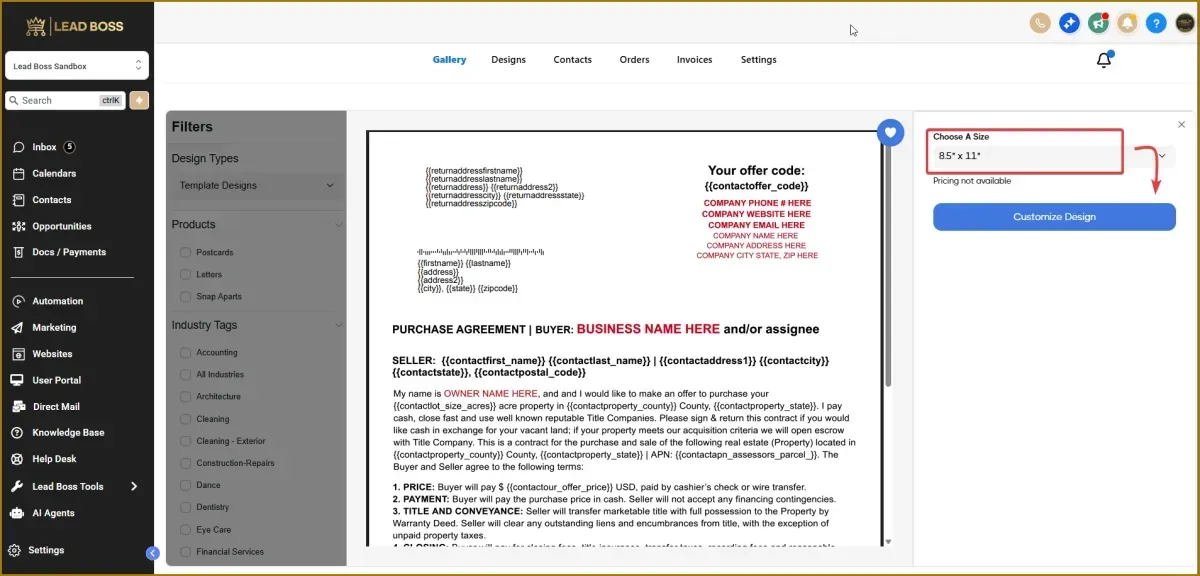
1️⃣ Click the Design button for the selected template.
2️⃣ Open the Size dropdown menu and choose the letter size.
3️⃣ Click Customize Design to open the design editor.
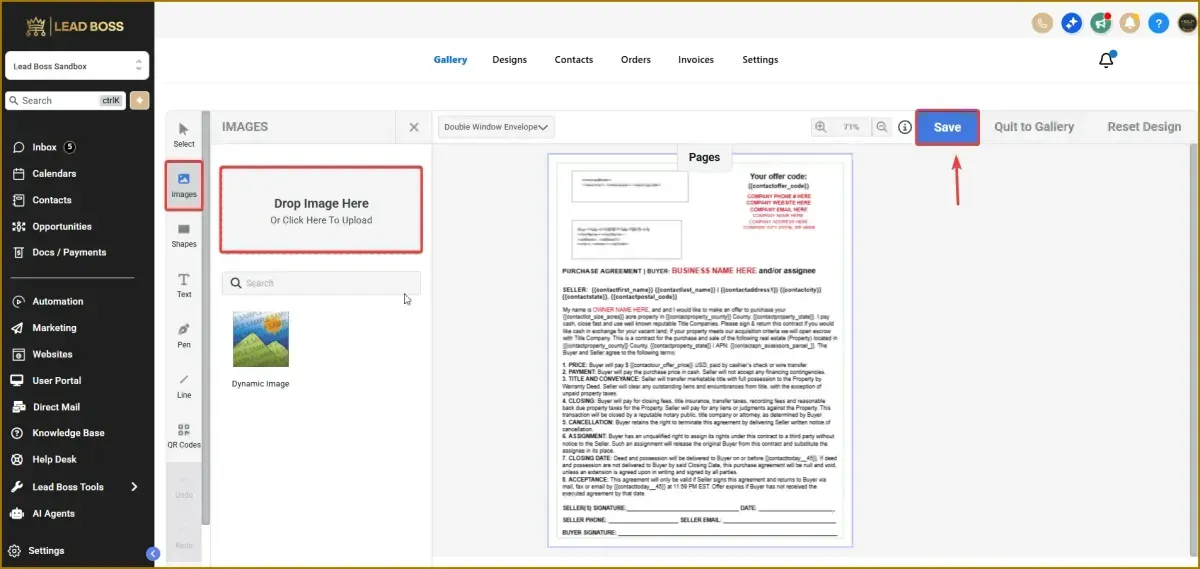
🧩 Step 5: Edit Your Letter
Inside the design editor, you can customize the letter by adding or editing elements such as:
Images
Shapes
Text
Lines
QR Codes
Envelope options
Adjust the layout and content based on your campaign or message.
💾 Step 6: Save Your Design
1️⃣ Once you finish customizing your letter, click Save.
2️⃣ Your customized design will be saved and added to your Designs tab, ready to be used for sending direct mail.
📊 Expected Result
Your customized letter or postcard design will now be available in the Designs section, where it can be selected when sending direct mail to contacts.