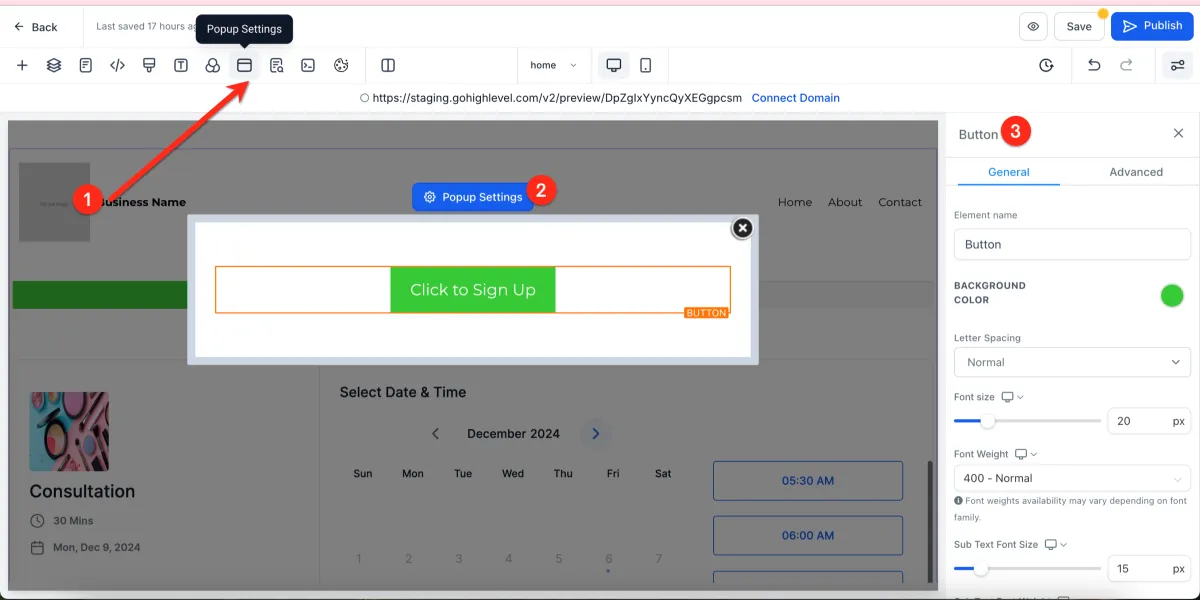
How to Add and Configure Pop-Ups
💬 Pop-Up Settings
📌 Step 1: Add or Select a Pop-Up
1️⃣ Open your page in the Page Builder Editor.
2️⃣ Navigate to the Pop-Up settings.
3️⃣ Select an existing pop-up or create a new one.
⚙️ Step 2: Edit Pop-Up Settings
1️⃣ Click on the pop-up.
2️⃣ The settings panel will appear on the right side.
3️⃣ Customize the pop-up properties such as:
Content
Design
Behavior
🖱️ Step 3: Trigger Pop-Up with a Button
1️⃣ Add or select a button element on your page.
2️⃣ In the button settings, set the action to open/show pop-up.
3️⃣ Choose the specific pop-up you want to display.
⏱️ Step 4: Set Automatic Pop-Up Triggers
1️⃣ Select the pop-up.
2️⃣ In the settings panel, locate “Show Popup On” options.
3️⃣ Choose how the pop-up appears:
Exit Intent (when users try to leave the page)
Time Delay (after a set number of seconds)
⚠️ Important Notes
While pop-ups may seem intrusive, they are highly effective for conversions
Use them strategically to avoid overwhelming users