How to Add Custom Values to Documents
📌 Step 1: Open the Document Editor
1️⃣ Navigate to Docs / Payments from the left sidebar.
2️⃣ Click Documents & Contracts.
3️⃣ Open an existing document template or create a new one.
4️⃣ The document editor will open.
⚙️ Step 2: Insert a Custom Value
1️⃣ Place your cursor in the document where you want the information to appear.
Example:
Buyer Name
Email Address
Property Details
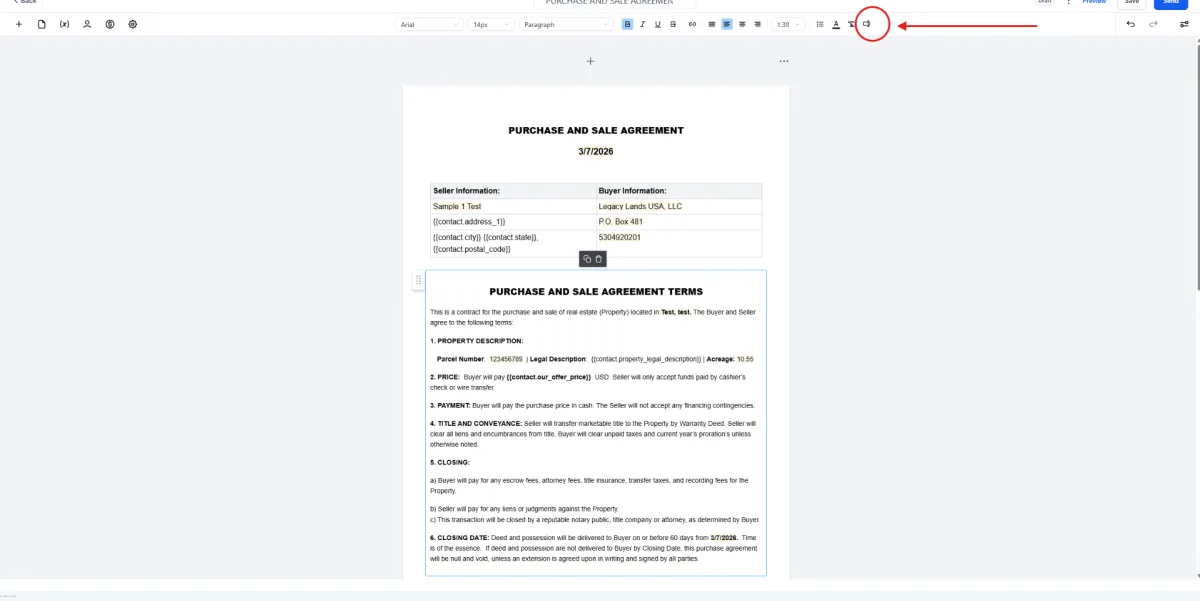
2️⃣ Click the Custom Values icon ({x}) in the top toolbar.
This will open the Custom Values panel.
🔎 Step 3: Select the Data Source
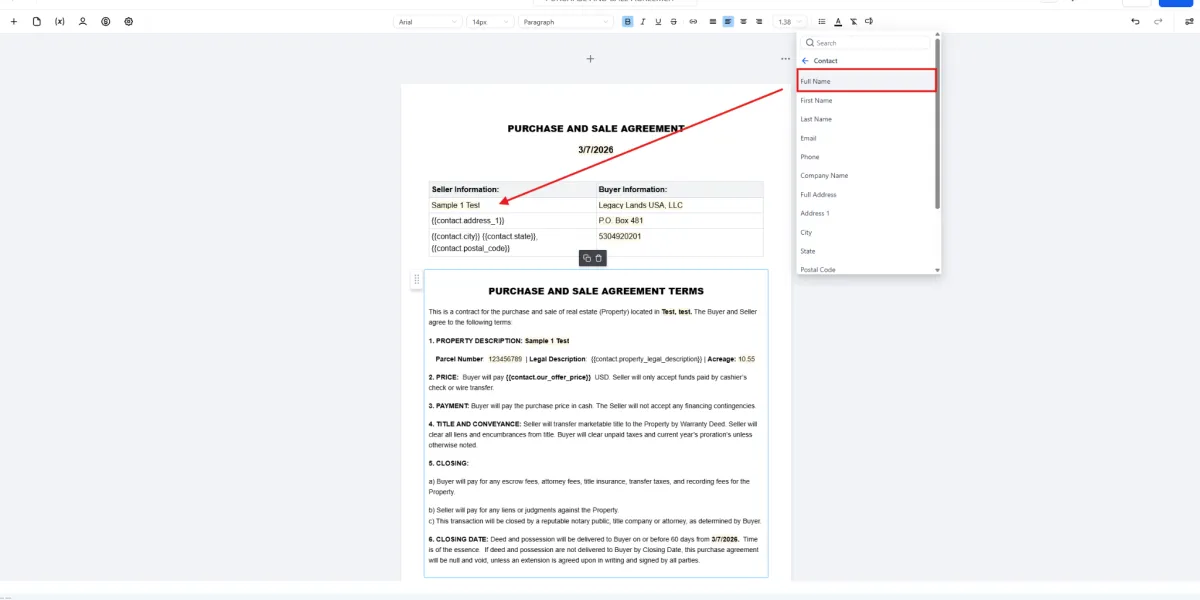
1️⃣ In the Custom Values panel, choose the category you want to pull data from.
Examples include:
Contact Fields
Full Name
First Name
Last Name
Phone
Address
Opportunity Fields
Opportunity Name
Opportunity Value
Opportunity Source
📄 Step 4: Insert the Custom Value
1️⃣ Click the field you want to insert.
Example: Full Name
2️⃣ The custom value will be added to the document.
Example:
💾 Step 5: Save the Document
1️⃣ After inserting the custom values, click Save.
2️⃣ The template will now automatically populate these values when the document is sent.
📊 How Custom Values Work
When you send the document to a contact, LeadBossCRM replaces the custom value with the actual data stored in the CRM.
Example:
Template:
Buyer Name:
If the contact name is John Smith, the final document will show:
Buyer Name: John Smith
📊 Expected Result
Your document will automatically populate the selected fields using CRM data, allowing you to create dynamic and reusable contract templates without manually entering client information each time.