
How to Add Fields to Your Opportunity Card
You can customize the Opportunity Cards in the pipeline to display important information such as APN, County, Lot Size, or other custom fields. This helps you quickly see key details without opening each opportunity.
⚠️ Important:
You can display a maximum of 8 fields per Opportunity Card.
📌 Step 1: Navigate to the Opportunities Section
1️⃣ Login to LeadBossCRM.
2️⃣ From the left sidebar menu, click Opportunities.
3️⃣ You will be taken to the Opportunities pipeline view, where all opportunities are organized by stages.
⚙️ Step 2: Open the Manage Fields Panel
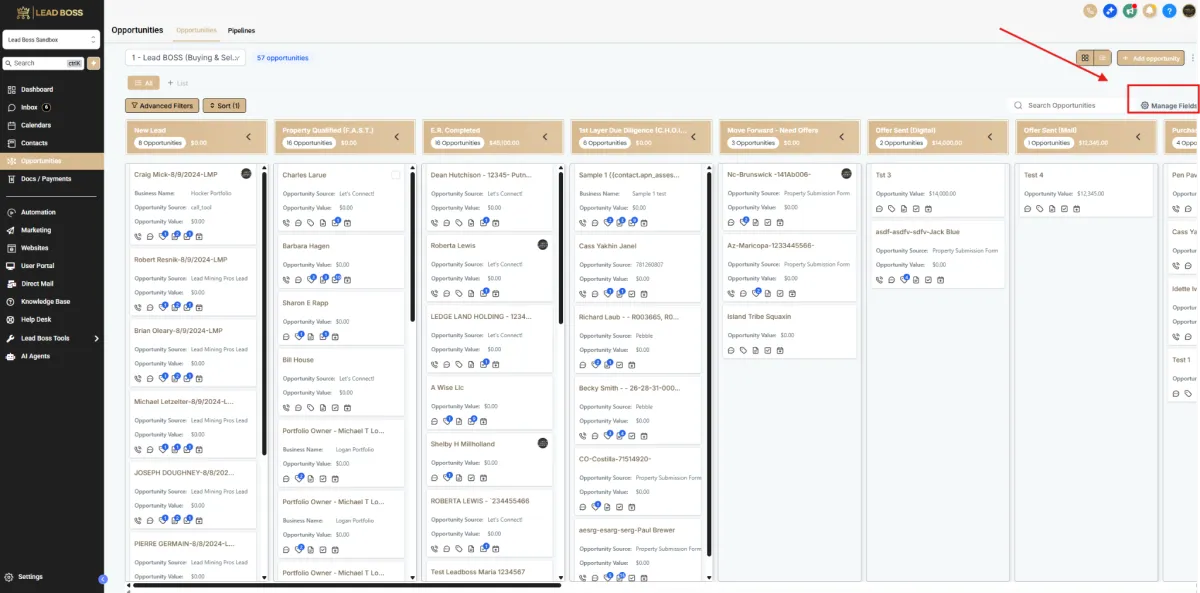
1️⃣ In the top-right area of the Opportunities page, click Manage Fields.
2️⃣ The Customize Card panel will open on the right side of the screen.
This panel allows you to customize how information appears on each opportunity card.
🧩 Step 3: Add Fields to the Opportunity Card
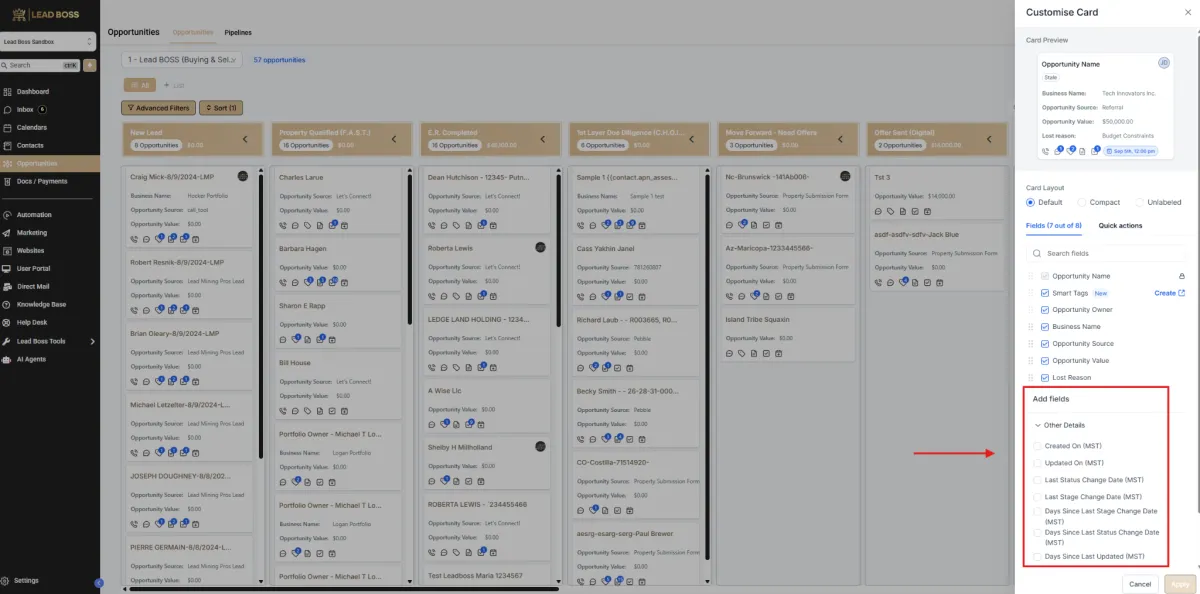
1️⃣ In the Fields section, you will see the list of currently displayed fields.
Examples may include:
Opportunity Name
Smart Tags
Opportunity Owner
Business Name
Opportunity Source
Opportunity Value
Lost Reason
2️⃣ Scroll down to the Add Fields section.
3️⃣ Locate the field you want to display.
Examples may include:
APN
County
Lot Size
Created Date
Last Status Change Date
4️⃣ Check the box next to the field you want to add.
The field will automatically be added to your Opportunity Card layout.
👀 Step 4: Preview the Card Layout
At the top of the panel, you will see a Card Preview section.
This preview shows how your Opportunity Card will appear in the pipeline after adding the fields.
You can use this preview to confirm that the correct information is displayed.
🔄 Step 5: Apply the Changes
1️⃣ Once you finish selecting your fields, click Apply.
2️⃣ The opportunity cards in your pipeline will update immediately.
📊 Expected Result
Your Opportunity Cards will now display the selected fields, allowing you to quickly view important details such as APN, County, or Lot Size directly in the pipeline.
This helps improve visibility and makes managing opportunities faster and more efficient.