🤖 How to Create Your First Voice AI Agent
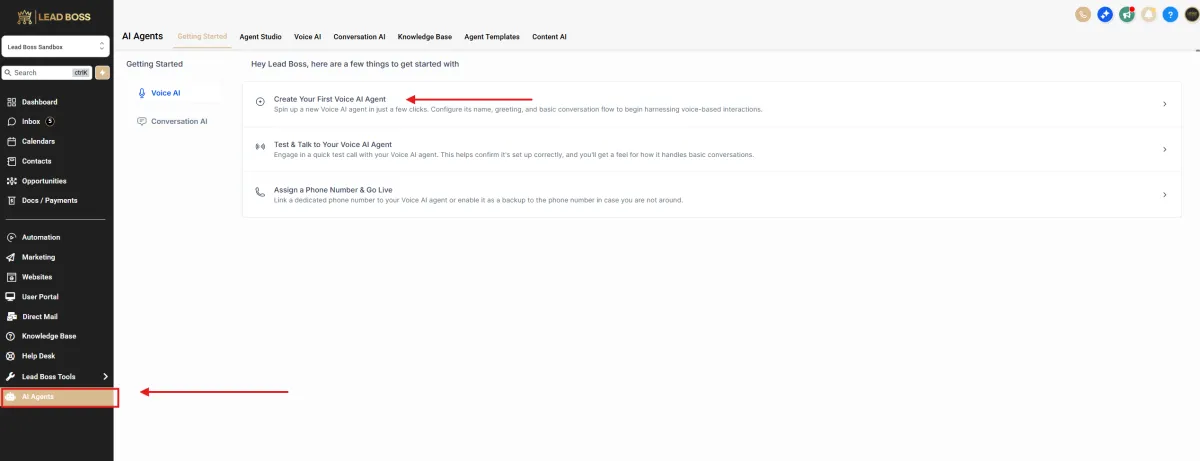
Inside Lead Boss – AI Agents Section
1️⃣ Navigate to Voice AI
📍 Path:
Left Sidebar → AI Agents → Getting Started → Click Voice AI
You will see the “Getting Started” screen with:
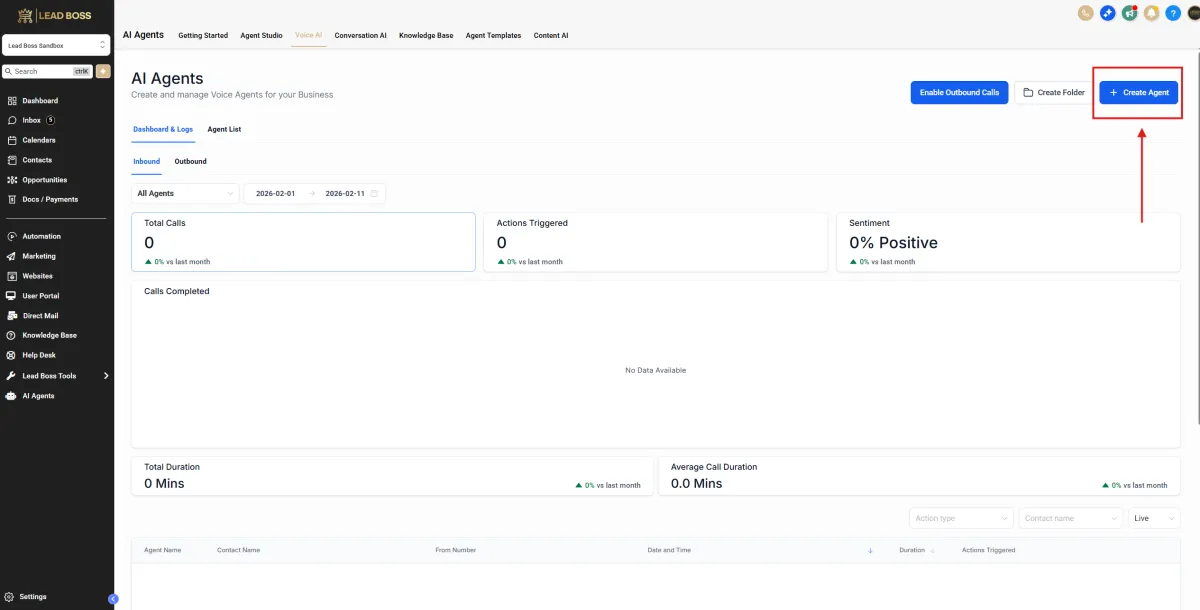
2️⃣ Create a New Voice AI Agent
🔹 Step 1: Click + Create Agent (Top Right)
This opens the agent configuration setup.
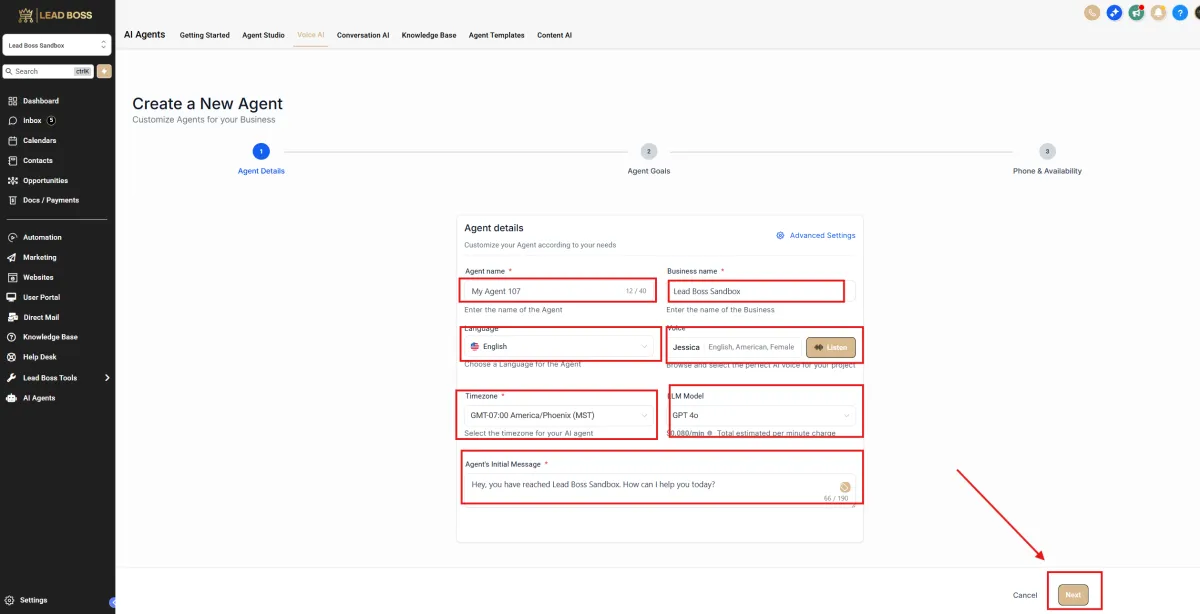
Agent Details
1️⃣ Agent Name
Internal name only.
Example:
Lead Boss CRM – Voice AI – V1
2️⃣ Business Name
Enter:
Lead Boss CRM
3️⃣ Language
Select: English
4️⃣ Voice
Choose a professional, clear voice.
Test using Listen before saving.
5️⃣ Timezone
Set to the client’s business timezone.
6️⃣ LLM Model
Use: GPT-4o (Best performance)
7️⃣ Initial Message (Important)
Use a controlled opener like:
“Thank you for calling Lead Boss CRM. How can i help you today?”
Avoid open-ended greetings.
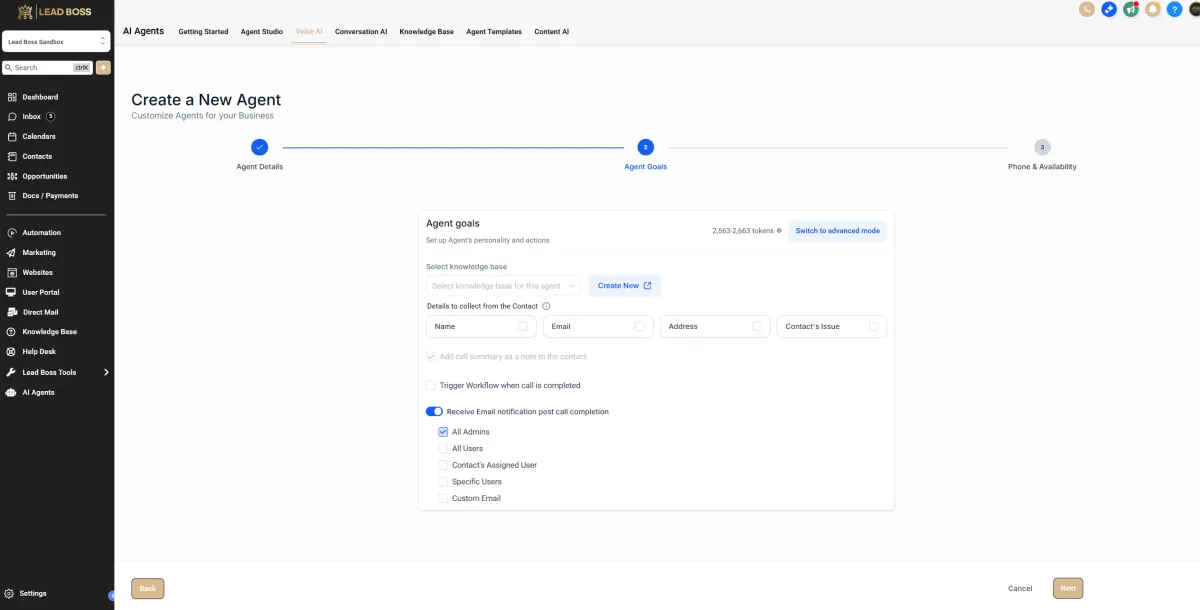
Agent Goals
1️⃣ Select Knowledge Base
Choose your existing Knowledge Base
OR click Create New to build one.
For Lead Boss CRM:
Use a KB that includes:
Services
Demo process
FAQs
Support info
Escalation rules
2️⃣ Details to Collect from Contact
Select the fields you want the AI to capture.
Recommended for Lead Boss CRM:
☑ Name
☑ Email
☑ Contact’s Issue
(Only add Address if necessary.)
3️⃣ Add Call Summary to Contact
Leave enabled if available.
This logs the AI call recap inside the contact record.
4️⃣ Trigger Workflow When Call Is Completed
Enable this ✅
This allows you to:
Create Opportunity
Move pipeline stage
Send follow-up SMS
Notify sales team
⚠️ Critical for automation routing.
5️⃣ Email Notifications
Enable:
☑ Receive email notification post call completion
Select:
☑ All Admins
(or Specific Users if preferred)
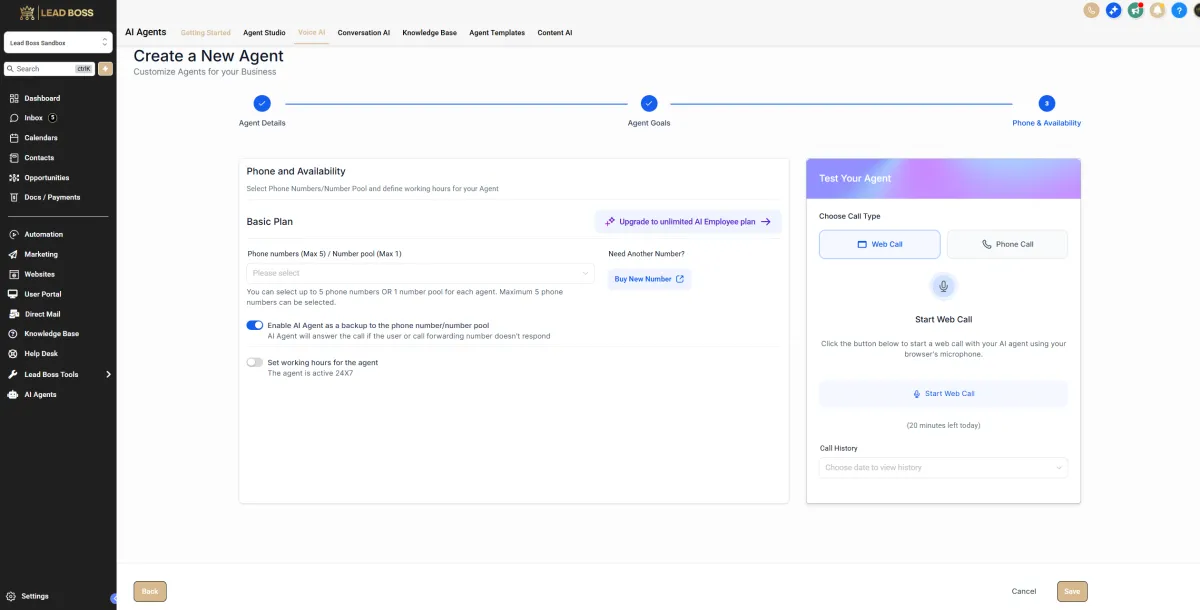
Phone & Availability
1️⃣ Select Phone Number
Under Phone numbers / Number pool:
Select your LC Phone number
You can assign up to 5 numbers (Basic Plan limit applies)
If no number appears:
Click Buy New Number
2️⃣ Backup Mode (Recommended)
Enable:
☑ Enable AI Agent as backup to the phone number
This means:
Human answers first
AI answers if call is missed
If you want AI to answer all calls → assign directly without backup logic.
3️⃣ Working Hours
Option 1: Leave OFF → AI active 24/7
Option 2: Turn ON → Set business hours
Best Practice for Lead Boss CRM:
AI 24/7 for lead capture
Human routing only during business hours
4️⃣ Test Your Agent (Before Saving)
On the right side:
Choose:
Web Call (quick browser test)
OR
Phone Call (real number test)
Click Start Web Call to simulate a live call.
Test:
✔ Greeting
✔ Data capture
✔ Call flow
✔ Workflow trigger
✔ Opportunity creation
5️⃣ Final Step
Click Save
Your Voice AI is now live 🎉