How to Create and Manage Smart Lists
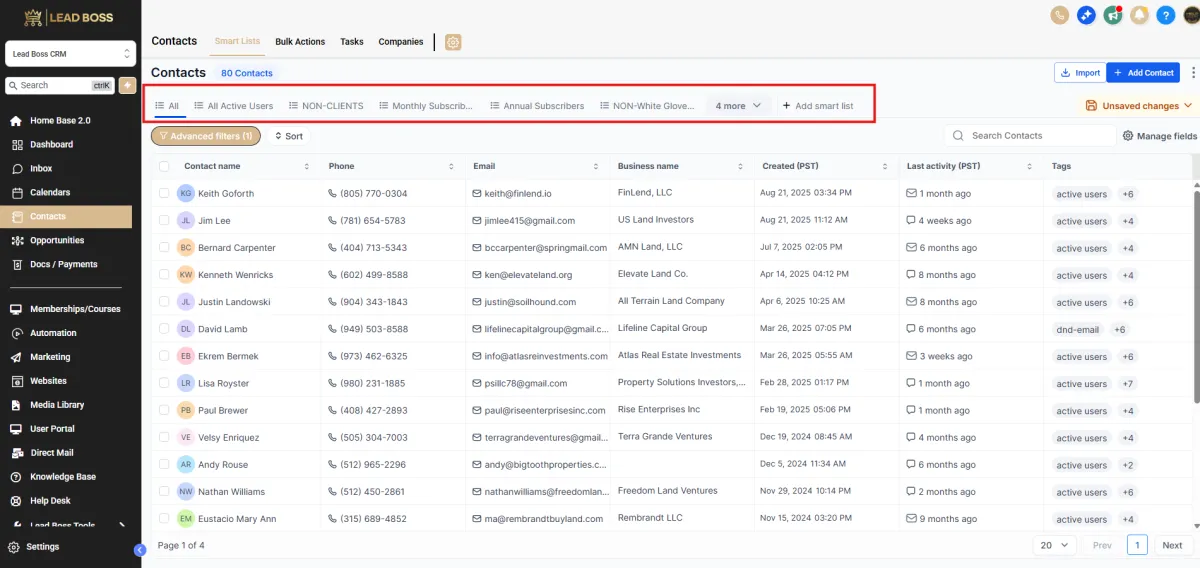
Smart Lists allow you to save filtered contact views so you can quickly access specific groups of contacts without applying filters every time. Once created, the Smart List will appear at the top of the Contacts page for quick access.
📌 Step 1: Navigate to the Contacts Section
1️⃣ Login to LeadBossCRM.
2️⃣ From the left sidebar menu, click Contacts.
3️⃣ You will be taken to the Contacts dashboard, where all contacts are displayed.
🔎 Step 2: Apply Filters to the Contacts List
1️⃣ Click Advanced Filters above the contacts table.
2️⃣ Select the filter conditions you want to use.
Examples may include:
Tags
Contact Source
Created Date
Pipeline Stage
Custom Fields
3️⃣ Configure the filter based on the criteria you want.
Example:
Tag is → County Arizona
4️⃣ Click Apply to filter the contacts.
The contact list will now display only the contacts that match your filter conditions.
💾 Step 3: Save the Filter as a Smart List
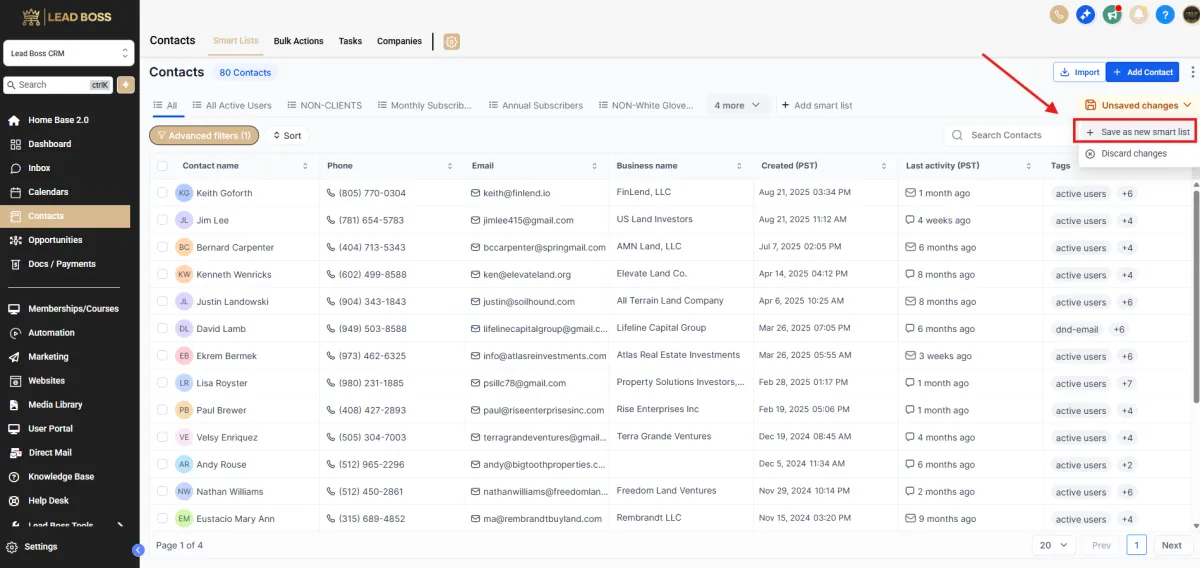
1️⃣ After applying your filters, click Unsaved Changes in the top-right area of the screen.
2️⃣ From the dropdown menu, select Save as New Smart List.
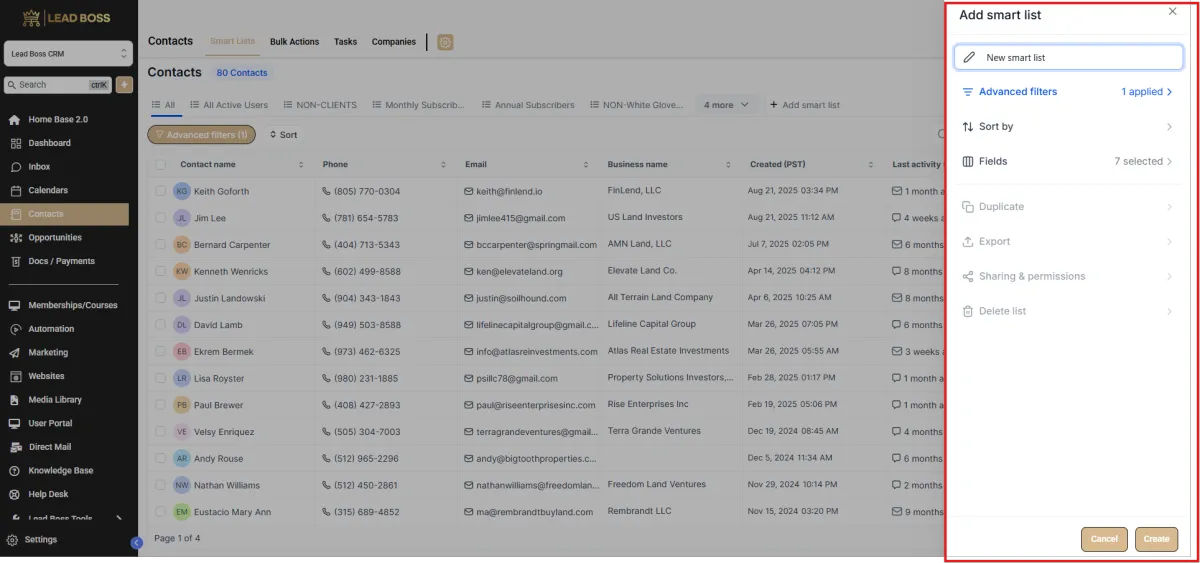
3️⃣ The Add Smart List panel will open on the right side.
✏️ Step 4: Name the Smart List
1️⃣ Enter a name for your Smart List.
Examples:
Active Users
Monthly Subscribers
Non-Clients
Follow Up Leads
2️⃣ You can review or adjust the following options if needed:
Advanced Filters (current filters applied)
Sort By (how contacts are ordered)
Fields (columns displayed in the list)
✅ Step 5: Create the Smart List
1️⃣ Click Create at the bottom of the panel.
2️⃣ Your Smart List will now be saved.
📂 Where Smart Lists Appear
Once created, the Smart List will appear in the Smart List navigation menu at the top of the Contacts page.
Examples may include:
All
Active Users
Non-Clients
Monthly Subscribers
Clicking a Smart List will automatically display contacts that match its saved filters.
📊 Expected Result
The Smart List will now be available in the top Contacts menu, allowing you to instantly view filtered contact groups without reapplying filters manually.
This makes it easier to manage contact segments for follow-ups, campaigns, and workflow automations.