How to Edit Element Settings in the Page Builder
📌 Step 1: Select the Element to Edit
1️⃣ Open your page in the Page Builder Editor.
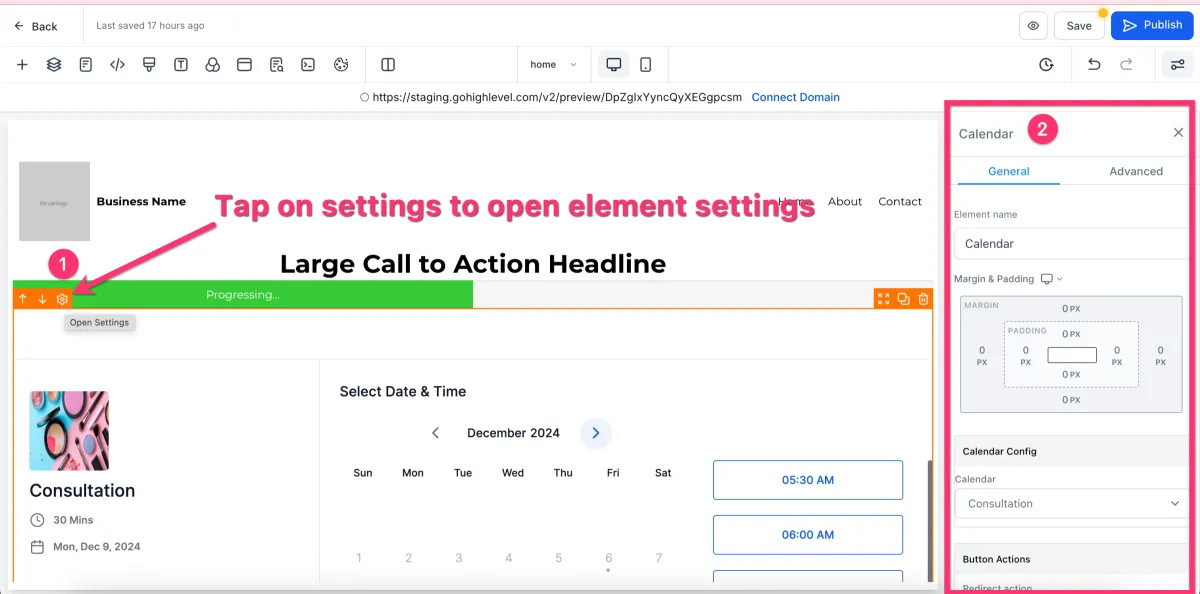
2️⃣ Hover over the section, row, column, or element you want to edit.
3️⃣ Click the ⚙️ gear icon that appears.
💡 Tip: You can also simply click directly on the element, and the settings panel will open automatically.
⚙️ Step 2: Open the Settings Panel
1️⃣ After selecting the element, the settings panel will appear on the right side of the screen.
2️⃣ This panel allows you to customize the selected element.
🎨 Step 3: Customize Basic Settings
Inside the settings panel, you can adjust:
Padding (spacing inside the element)
Margin (spacing outside the element)
Visibility (show/hide on different devices)
Other layout and design options
🔧 Step 4: Explore General and Advanced Tabs
1️⃣ Navigate through the tabs inside the settings panel:
General Tab → Basic settings and content
Advanced Tab → More detailed customization options
2️⃣ Use these tabs to fine-tune the appearance and behavior of your element.