How to Navigate Pages and Use Layers
📌 Step 1: Open the Layers Panel
1️⃣ Open your page in the Page Builder Editor.
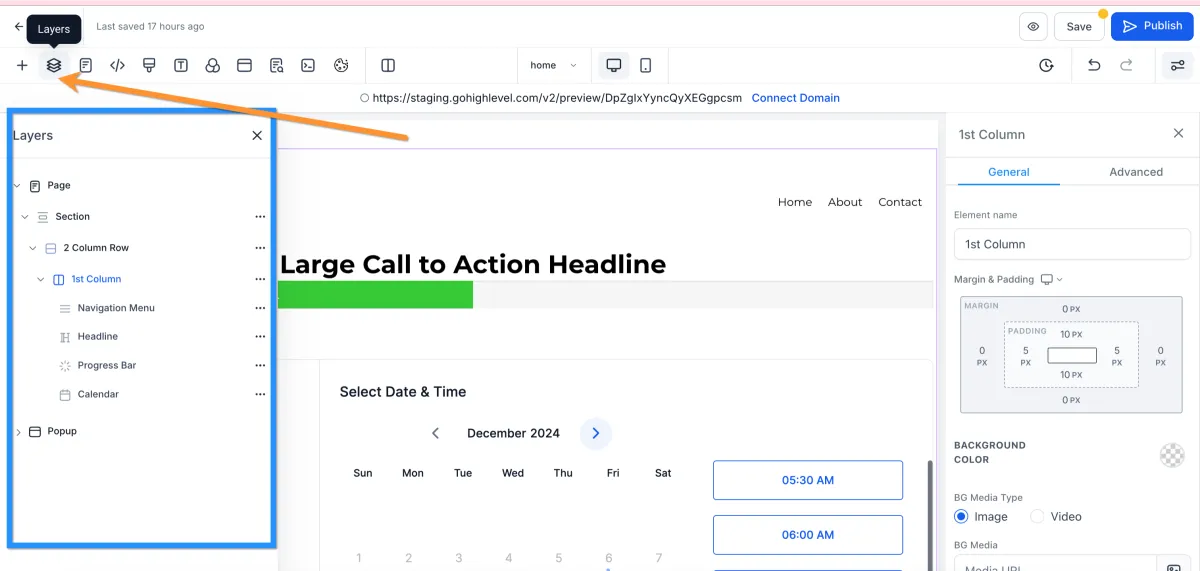
2️⃣ Locate and click the Layers tab/icon in the builder.
3️⃣ The Layers panel will display all elements on the page.
🧱 Step 2: Understand the Layer Structure
1️⃣ The Layers panel shows the full element hierarchy:
Sections
Rows
Columns
Elements
2️⃣ This reflects how everything is nested on your page.
🔍 Step 3: Use Layers to Locate Elements
1️⃣ Browse through the list to find specific elements.
2️⃣ Click on any item in the Layers panel to:
Select it instantly
Highlight it on the page
💡 This is especially helpful if an element is hard to find.
👁️ Step 4: Manage Hidden or Misplaced Elements
1️⃣ Use Layers to identify elements that are:
Hidden on desktop or mobile
Placed in the wrong section
2️⃣ Select and adjust them using the settings panel.
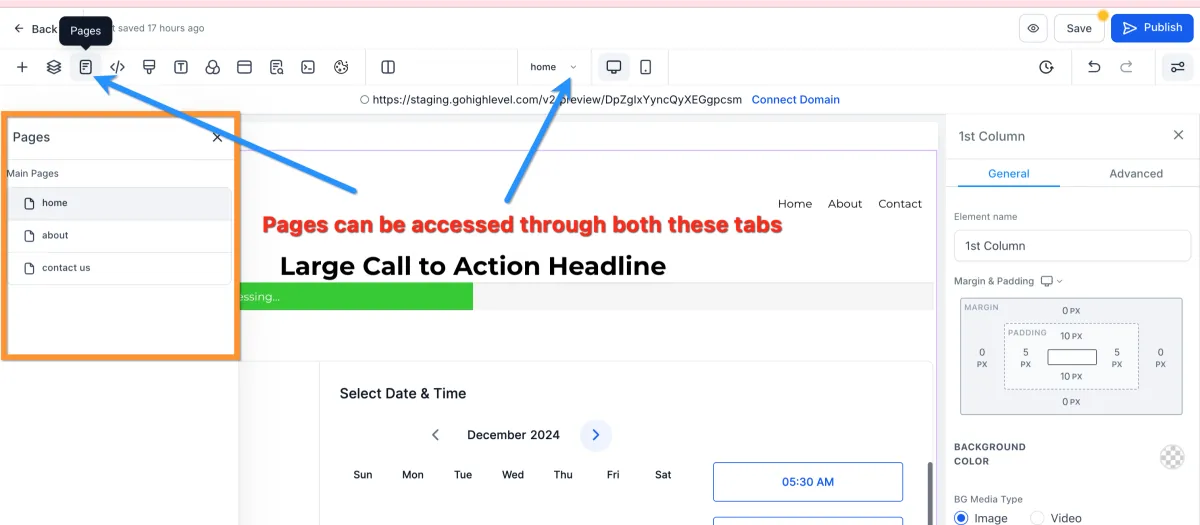
How to Navigate Pages
📌 Step 1: Open the Pages Tab
1️⃣ Open your page in the Page Builder Editor.
2️⃣ Click the Pages tab in the builder.
3️⃣ You can find this tab in:
The right sidebar, or
The middle navigation bar
🌐 Step 2: View All Pages
1️⃣ The Pages panel will display all pages in your:
Funnel
Website
2️⃣ Each page will be listed for easy access.
🔄 Step 3: Switch Between Pages
1️⃣ Click on any page from the list.
2️⃣ The builder will automatically load that page for editing.
💡 This allows you to quickly move between multiple pages.
⚡ Step 4: Work Efficiently Across Pages
1️⃣ Use the Pages tab when:
Editing multiple pages
Updating consistent designs
Navigating large funnels or websites