How to Send Direct Mail to a Contact
📌 Step 1: Open the Direct Mail Section
1️⃣ Login to LeadBossCRM.
2️⃣ From the left sidebar menu, click Direct Mail.
👤 Step 2: Select a Contact
1️⃣ Open the Contacts section within Direct Mail.
2️⃣ Search for or select the contact you want to send mail to.
3️⃣ Open the contact profile.
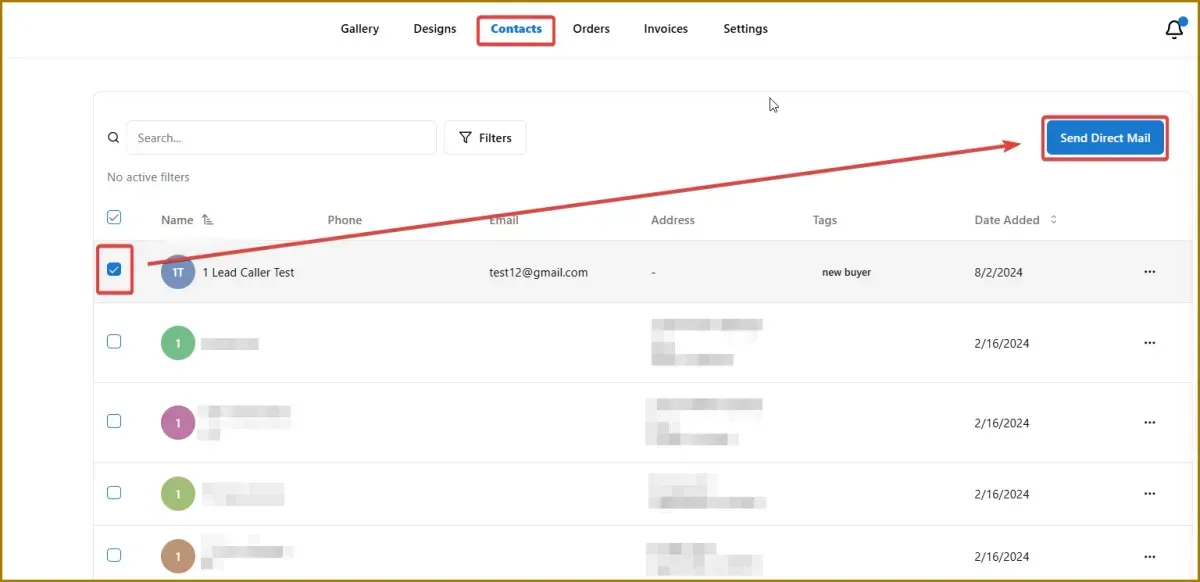
📬 Step 3: Click Send Direct Mail
1️⃣ In the upper-right corner of the contact profile, click Send Direct Mail.
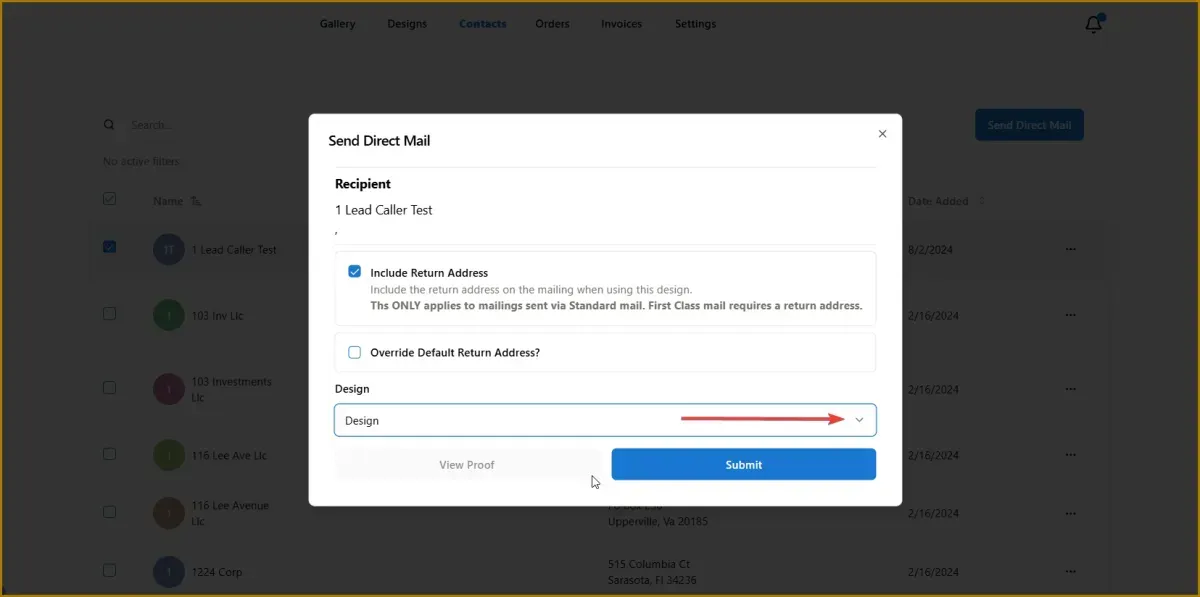
2️⃣ The Direct Mail sending window will appear.
📄 Step 4: Choose the Letter Design
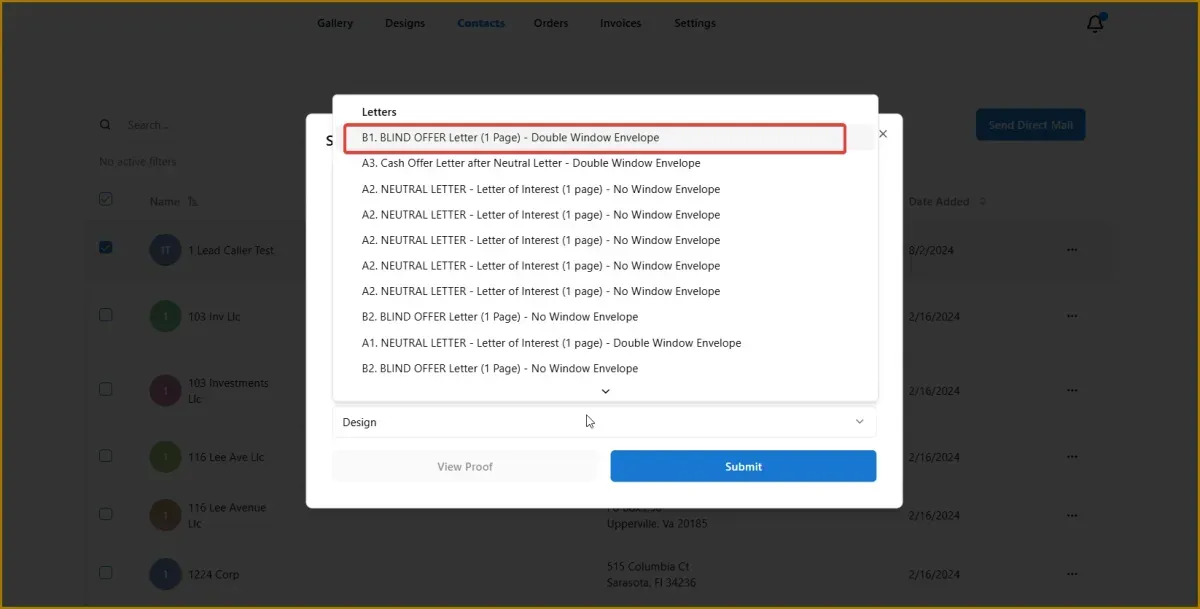
1️⃣ Open the Design dropdown menu.
2️⃣ Select the letter or postcard design you want to send.
The system will automatically populate the mapped contact information into the letter.
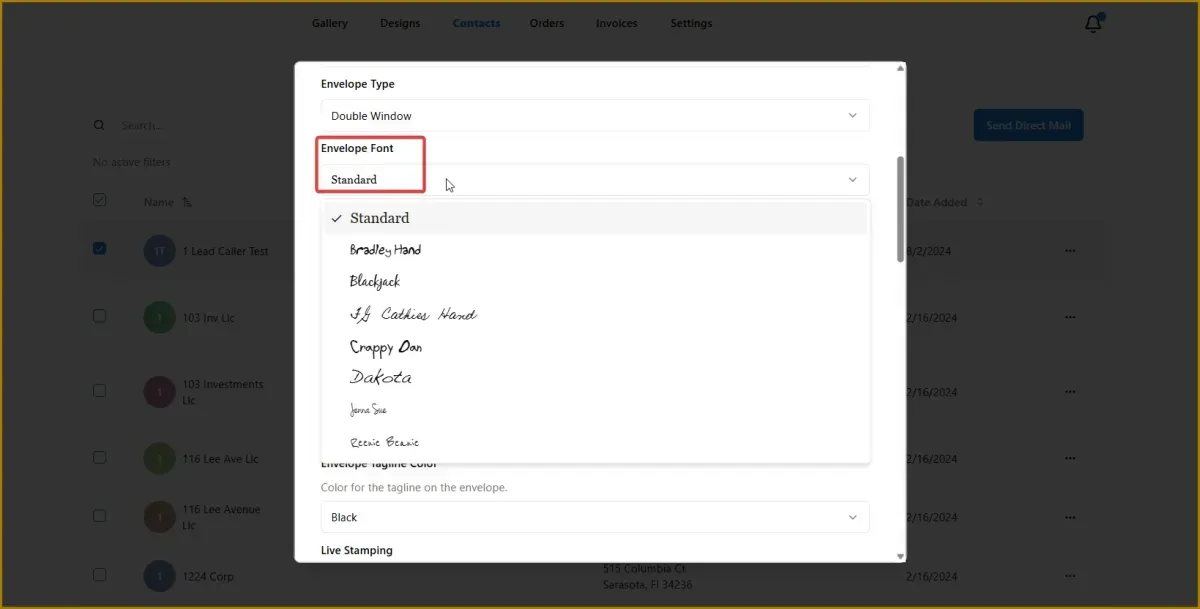
✍️ Step 5: Select an Envelope Font (Optional)
If your letter includes a handwritten envelope option:
1️⃣ Open the Envelope Font dropdown.
2️⃣ Choose the handwritten style you want to use.
This adds a more personalized appearance to the envelope.
👀 Step 6: Review the Mail
Before sending:
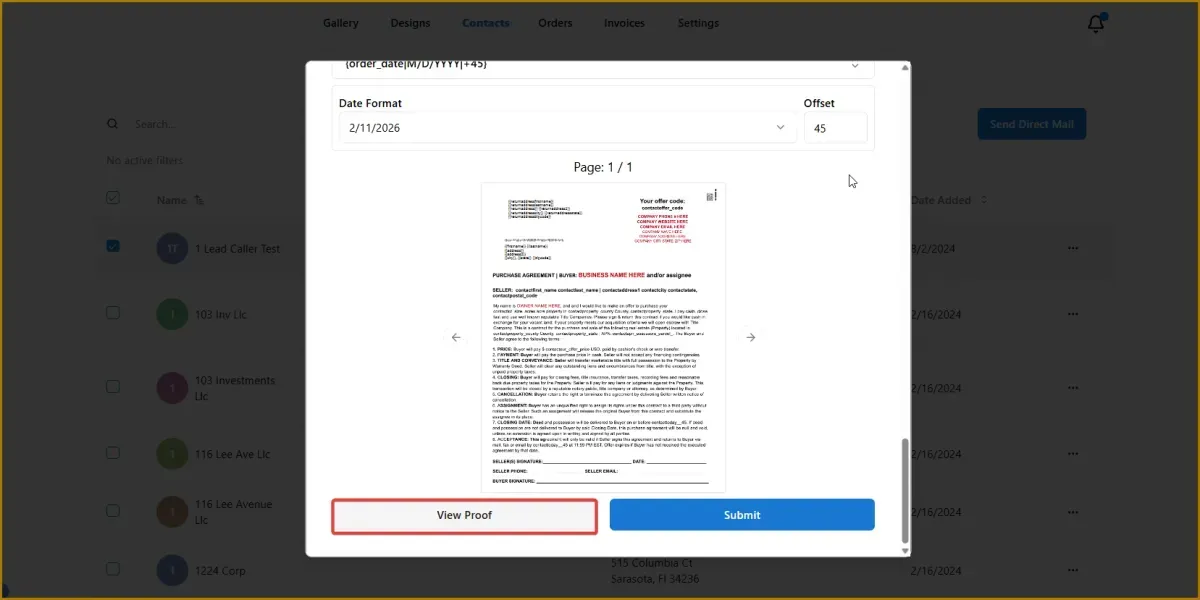
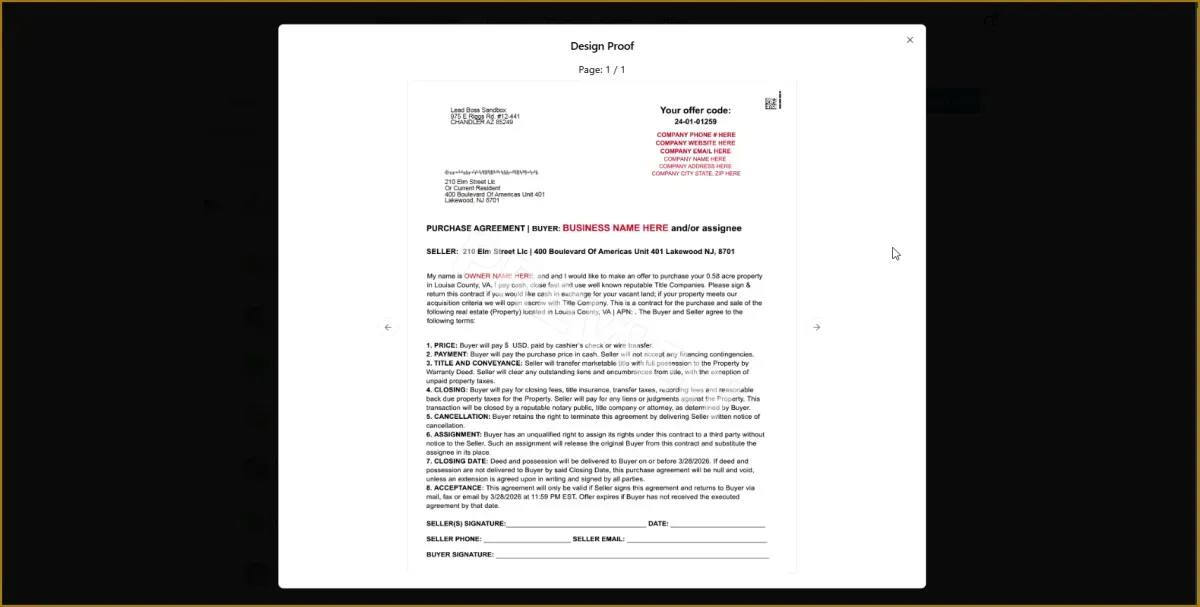
1️⃣ Click View Proof.
2️⃣ Review the letter to ensure:
Contact information is correct
Variables are populated properly
The layout looks correct
🚀 Step 7: Send the Mail
1️⃣ After confirming the proof, click Send.
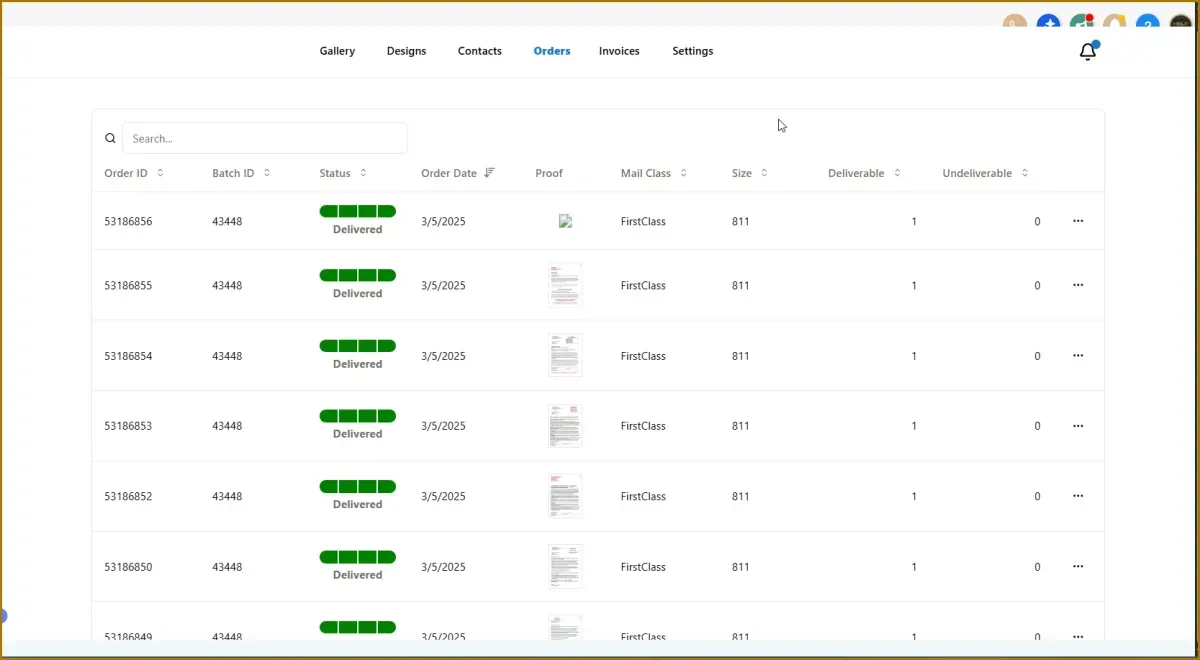
2️⃣ The letter will be queued for printing and mailing.
📊 Expected Result
The selected letter or postcard will be sent to the contact using the mailing information stored in the CRM. The system will automatically personalize the mail using the mapped variables.