How to Setup and Send Direct Mail
1️⃣ Go to Direct Mail Tab
2️⃣ It should then prompt you for a code that will be sent to your email. Then, Input your 6 digit code
3️⃣ Navigate to your settings Account before visiting other tabs.
4️⃣ Fill in Details
First Name
Last Name
Company Name
Address
City
State
Zipcode
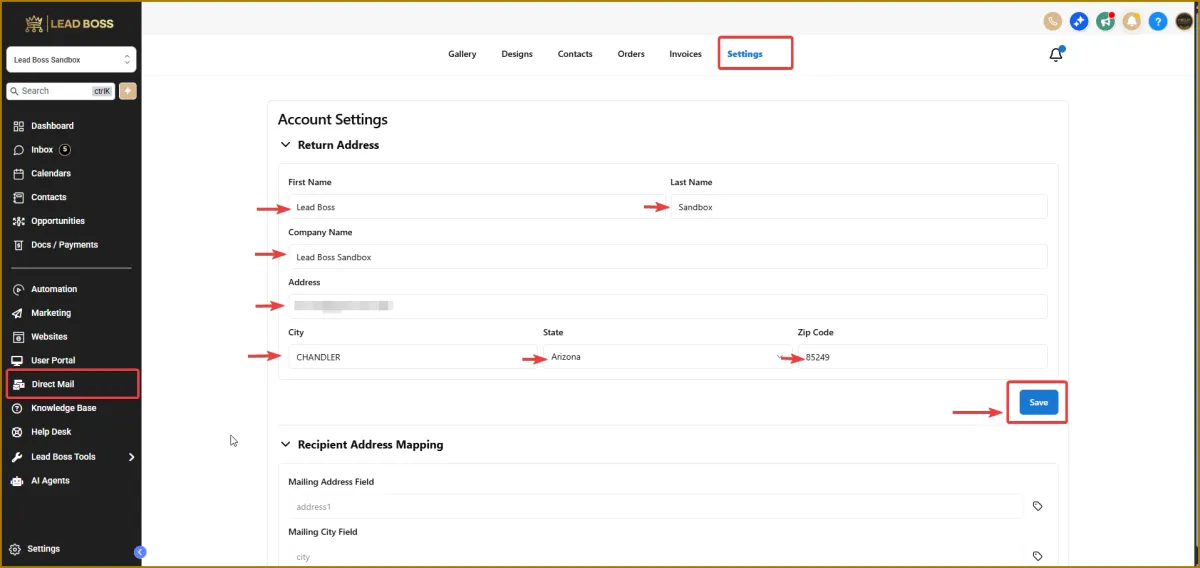
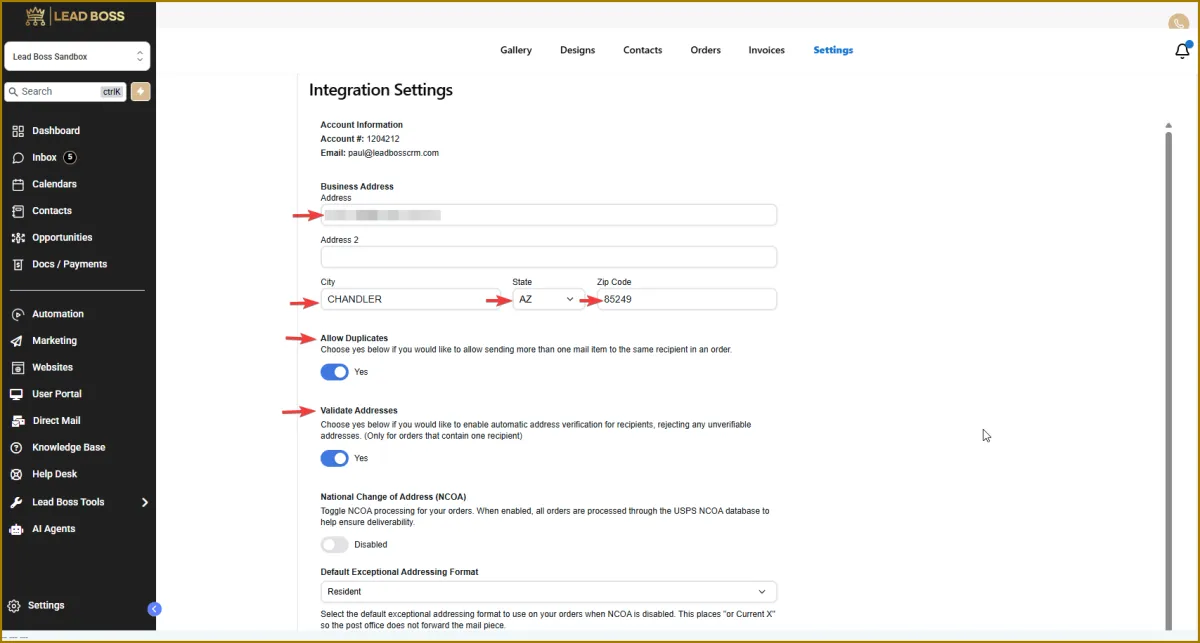
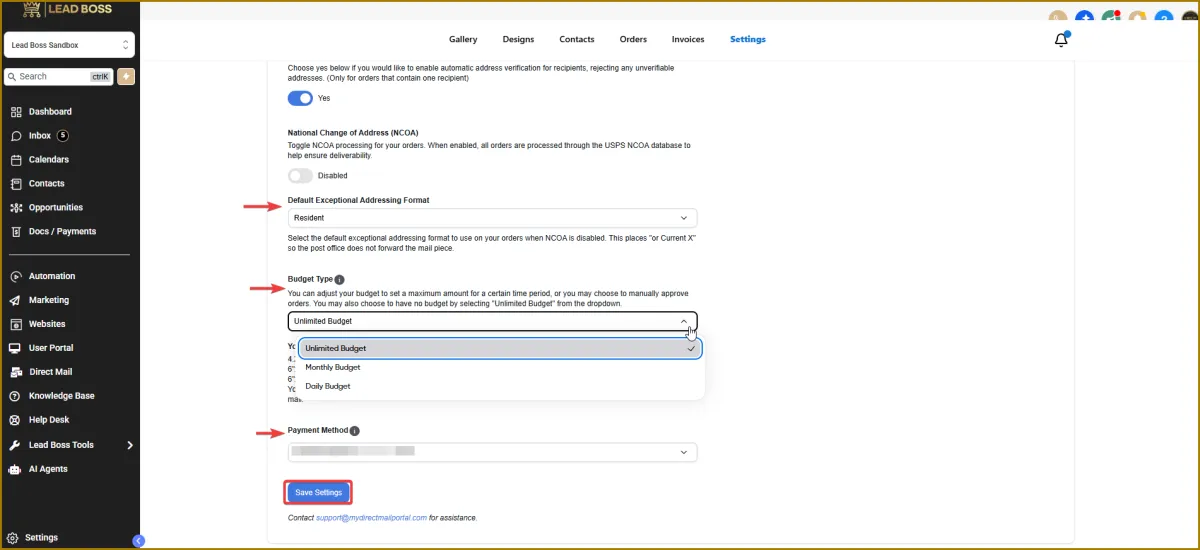
5️⃣ You’ve completed the Settings. You can now move on to the next step.
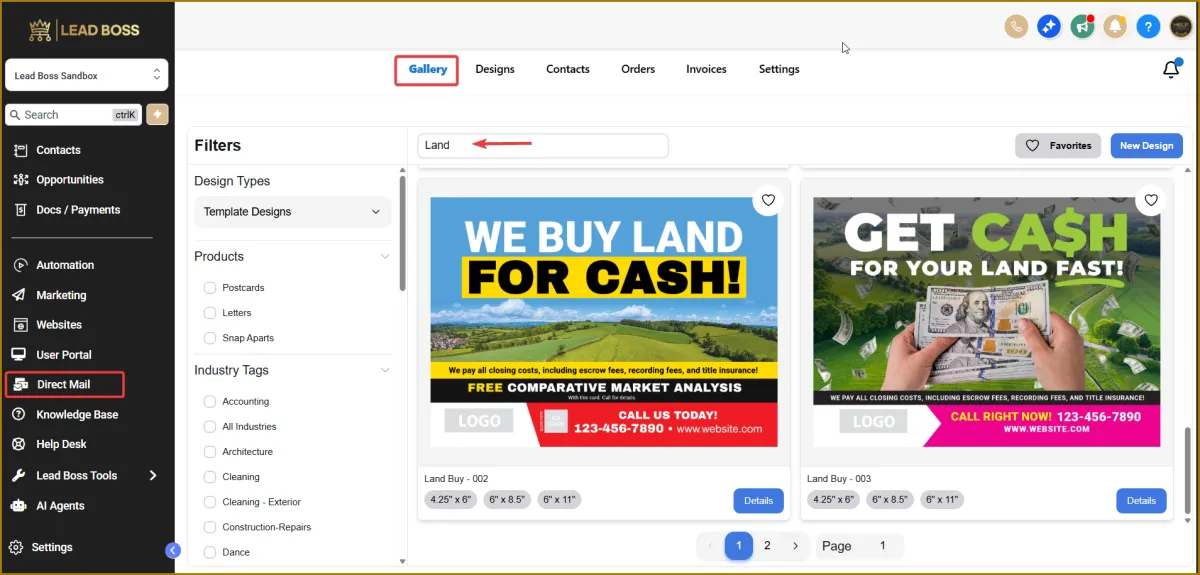
6️⃣ Go to the Gallery tab to view the available letters. Browse through the options and mark the ones you’re most likely to use by tapping the heart icon.
7️⃣ When you’ve selected a letter, click the Details tab for that specific letter to continue.
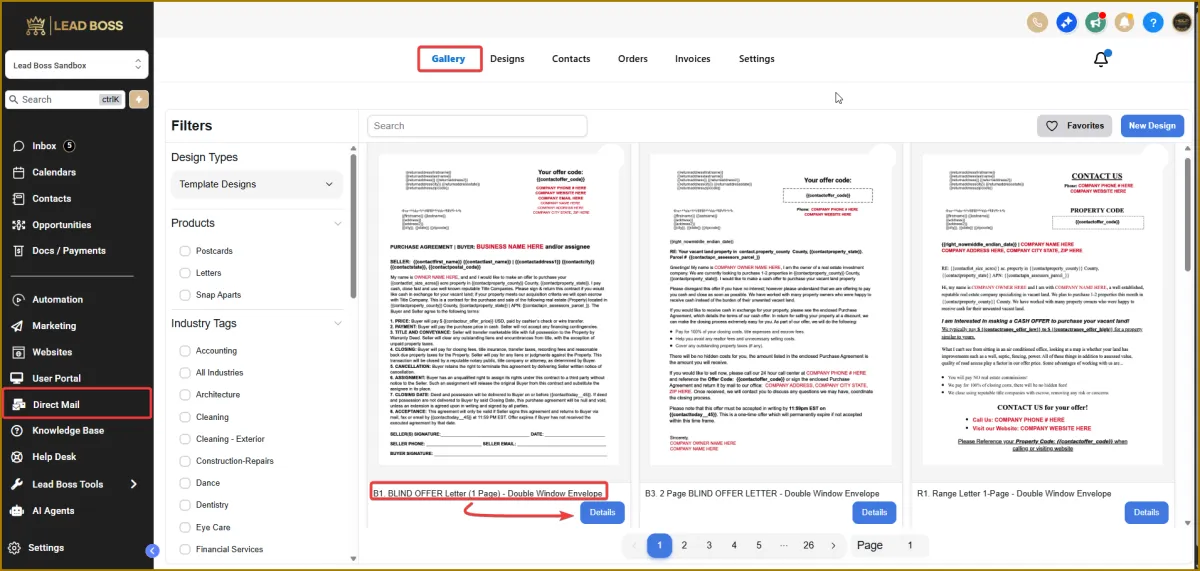
8️⃣ If you’d like to use a postcard, we have ready-made options available. Simply type “Land” into the search bar, then browse and select the postcards you want to use.
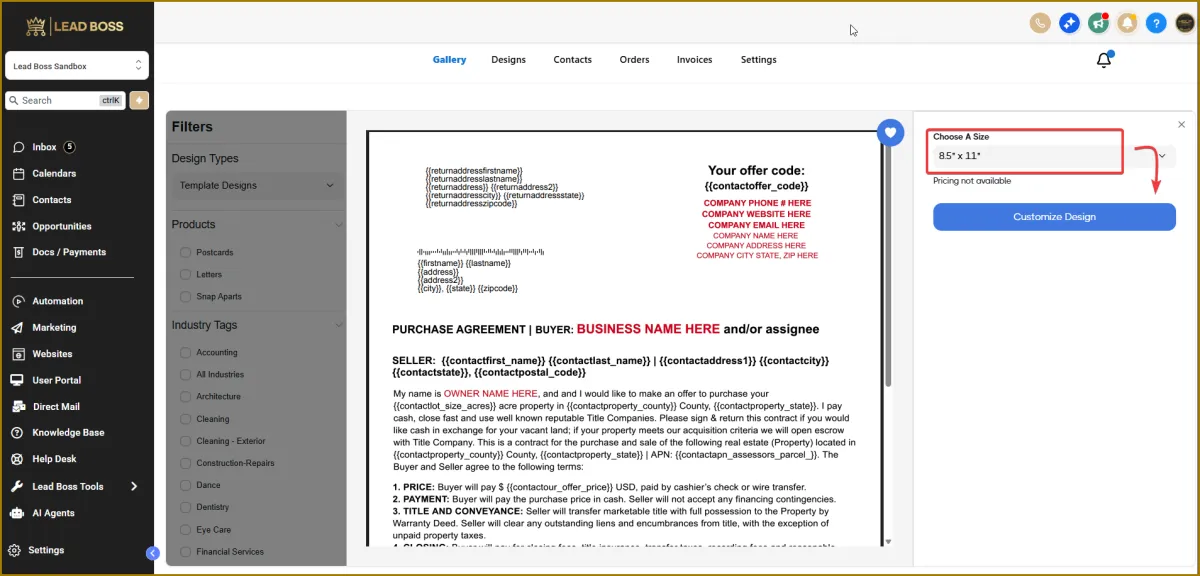
9️⃣ For letters, tap the Design button to be taken to the next page.
Open the dropdown menu to choose a size, then tap Customize Design to continue.
🔟 From here, You customize your letter and add
Images
Shapes
Text
Lines
Qr code
Envelope option
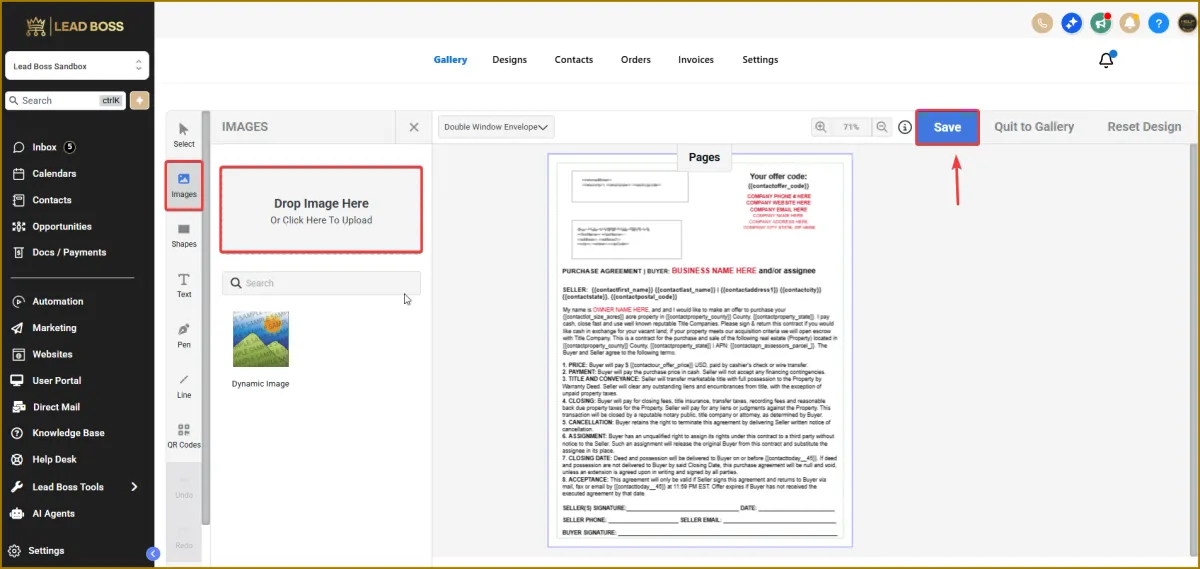
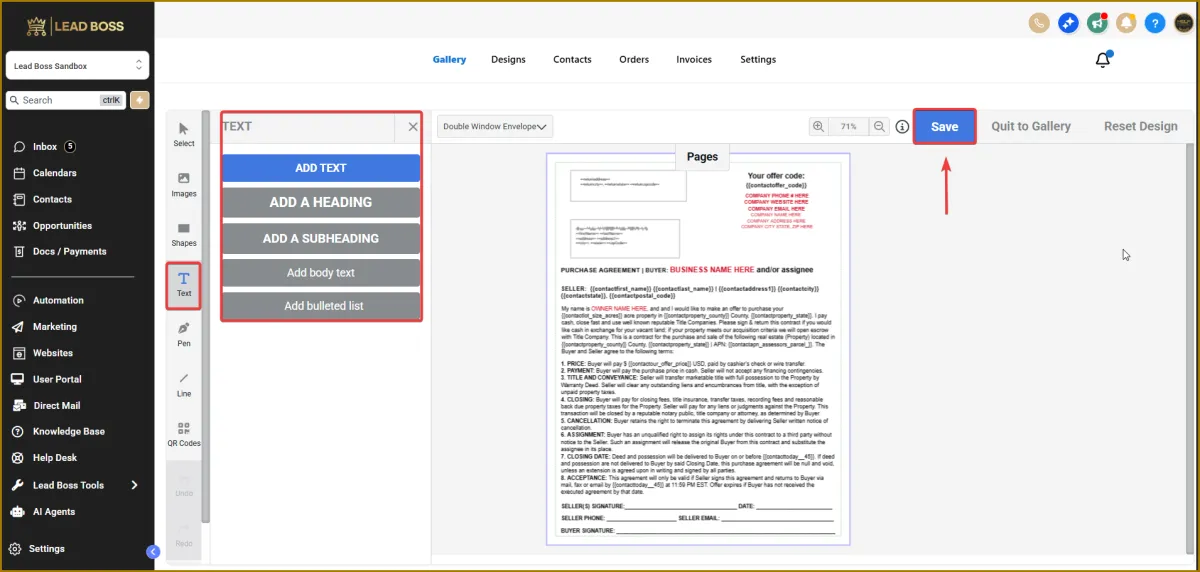
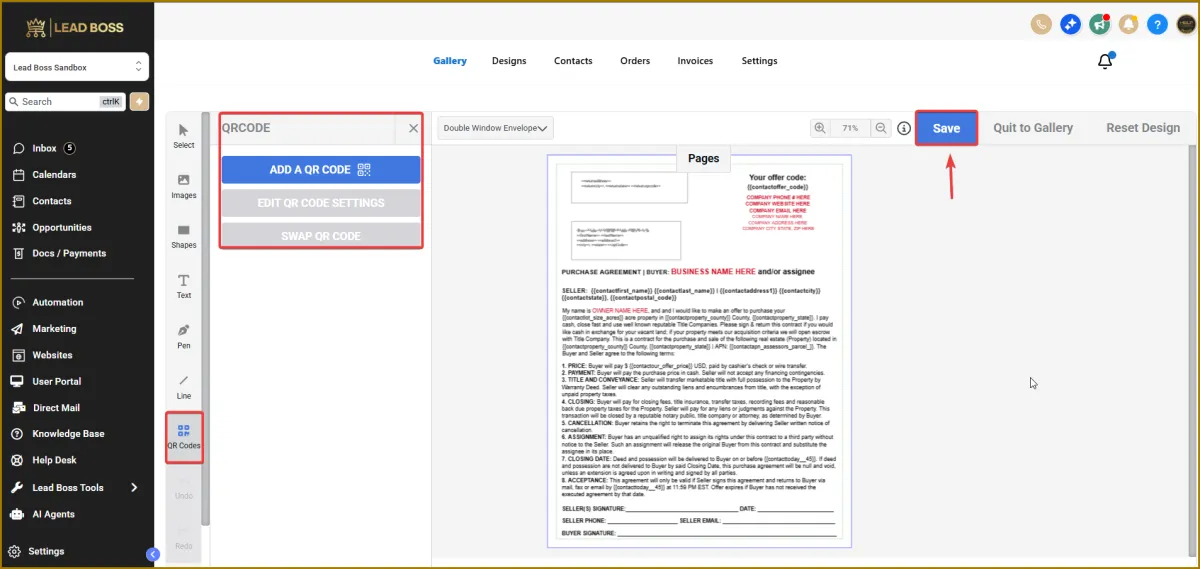
1️⃣1️⃣ Once you’ve finished making your changes, don’t forget to tap Save.
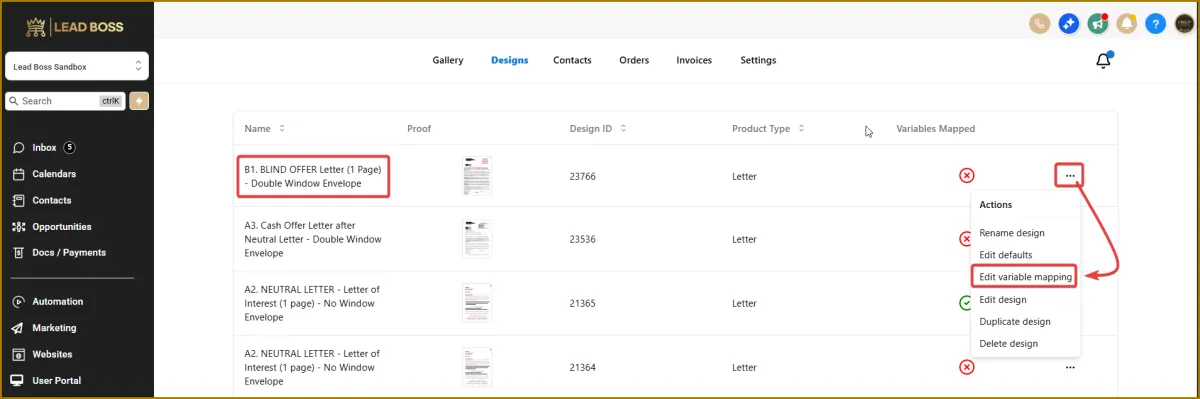
1️⃣2️⃣ After saving, you’ll be taken to the Designs tab. Your newly saved letter will appear at the top of the list. Tap the three-dot icon, then select Edit Variable Mapping to begin mapping the variables.
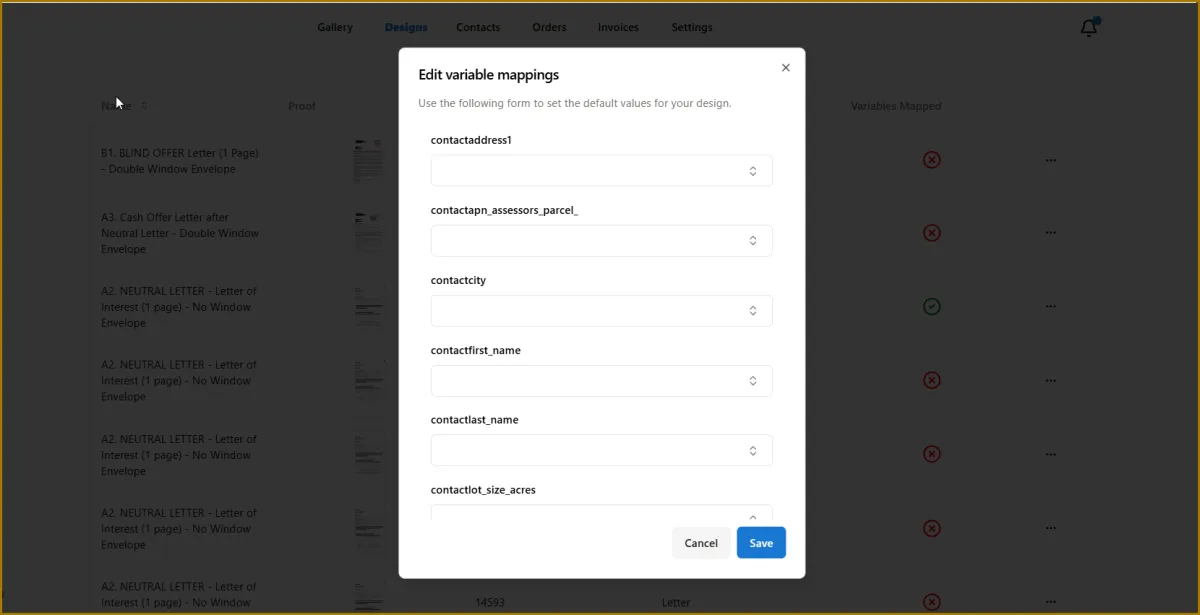
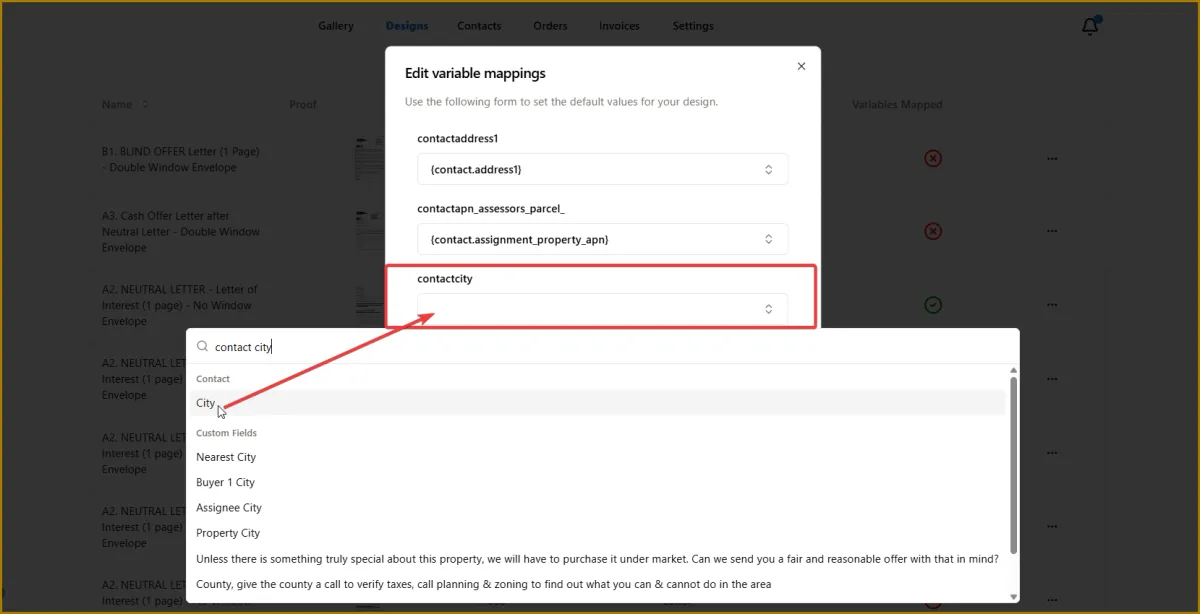
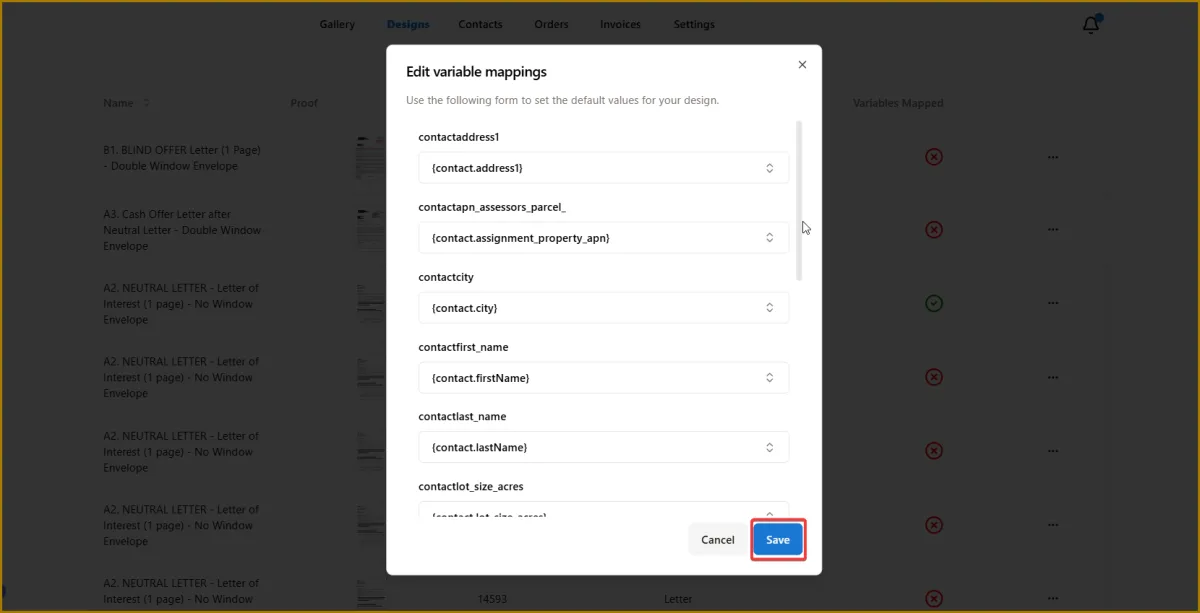
1️⃣3️⃣ Open the dropdown menu to proceed with manual mapping. You only need to do this once per letter.
For example, when mapping Contact City, type contact city into the search field. The matching variable will appear. You’ll know it’s the correct one because the variable name corresponds exactly to the title.
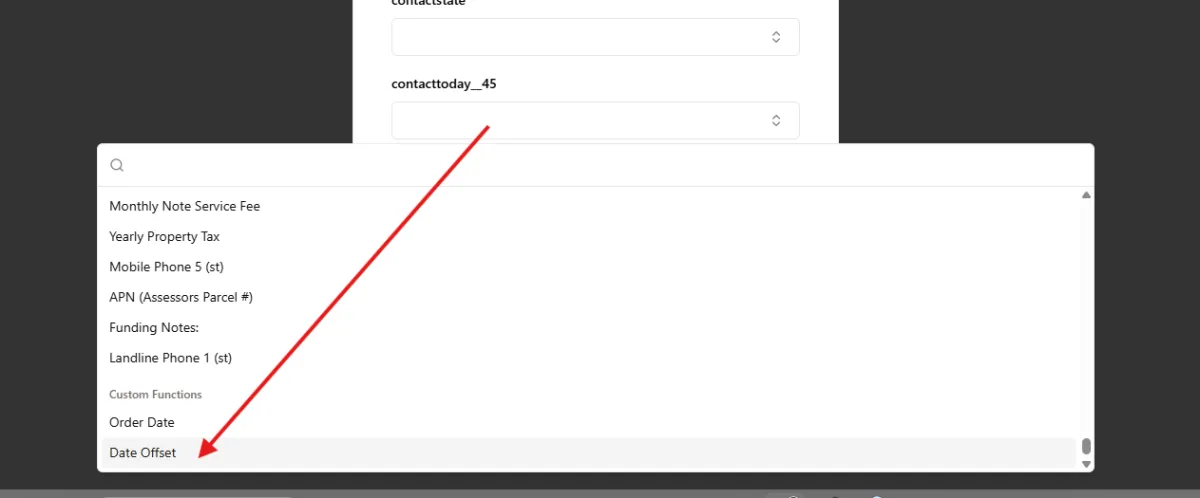
Map Offset Date (Future Date)
Scroll down to the very bottom.
Use this when you want to automatically generate a future date (e.g., 45 days after the order date).
- Locate the field (example: contacttoday__45)
- Open the dropdown menu.
- In the search bar, type:
Date Offset
- Under Custom Functions, select Date Offset
- Configure the settings:
Base Field: Order Date
Offset: Enter number of days (e.g., 45)
Date Format: M/D/YYYY (or your preferred format)
💡 Example:
Order Date: 5/2/2026
Offset: +45 days
Result: 6/16/2026
✅ This field will now automatically calculate and populate a future date.
Map “Right Now” Date (Order Date)
Use this to display the current reference date (Order Date) without any offset.
- Locate the field (example: right_nowmiddle_endian_date)
- Click the dropdown.
- In the search bar, type:
Order Date
- Select Order Date
- Set the format:
M/D/YYYY
💡 This will render as:
{order_date|M/D/YYYY}
✅ This inserts the order date exactly as-is.
1️⃣4️⃣ Click Save once you’ve finished mapping.
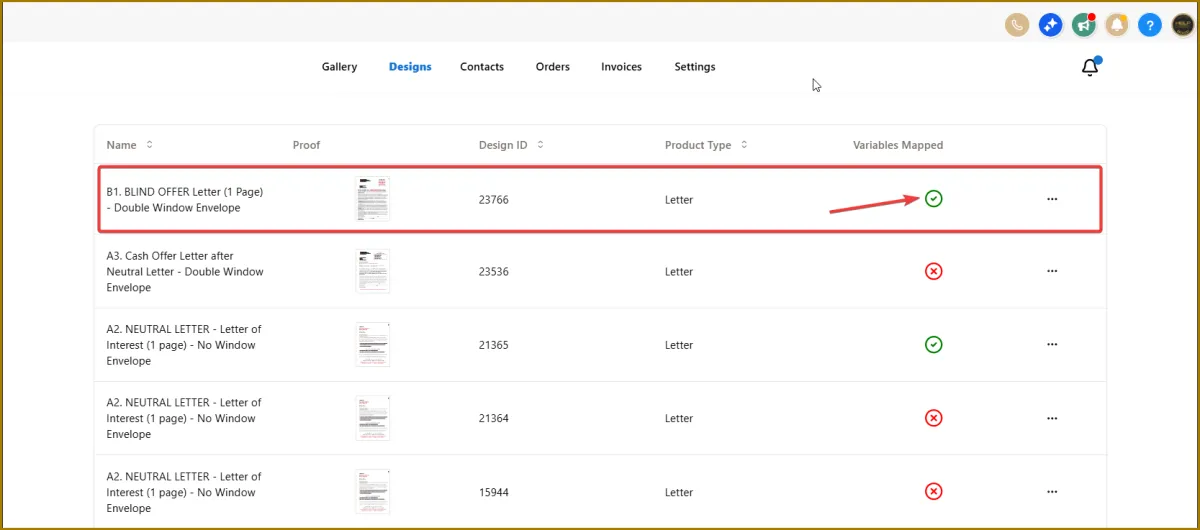
1️⃣5️⃣ When the mapping is complete, a checkmark will appear next to that letter, as shown in the sample below.
📬 How to Send a Letter to a Contact?
1️⃣ Go to Direct Mail Tab
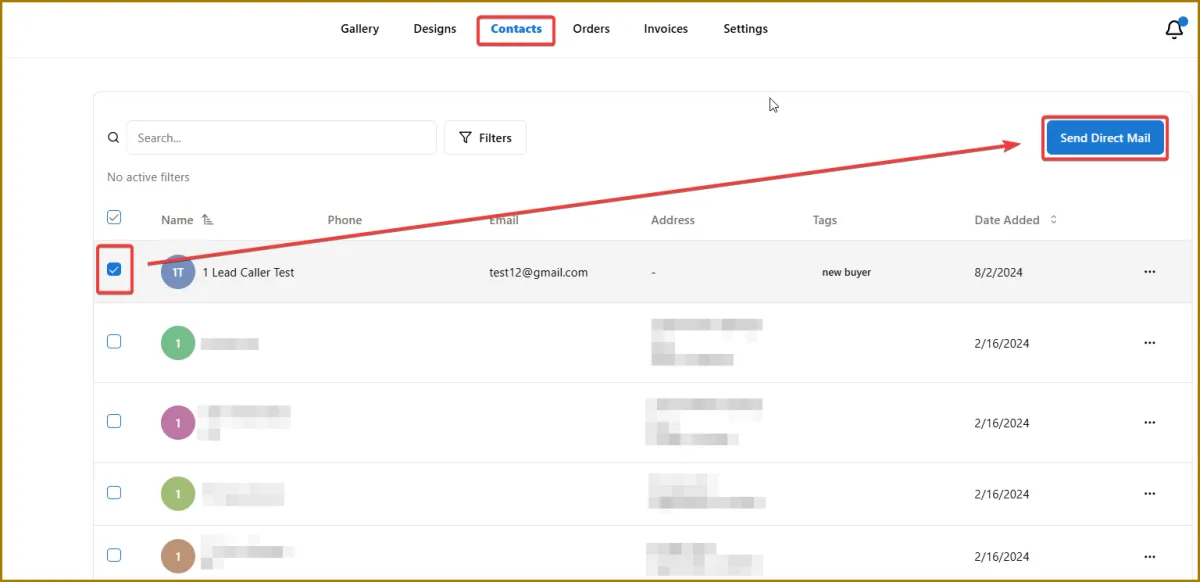
2️⃣ Open the Contacts menu.
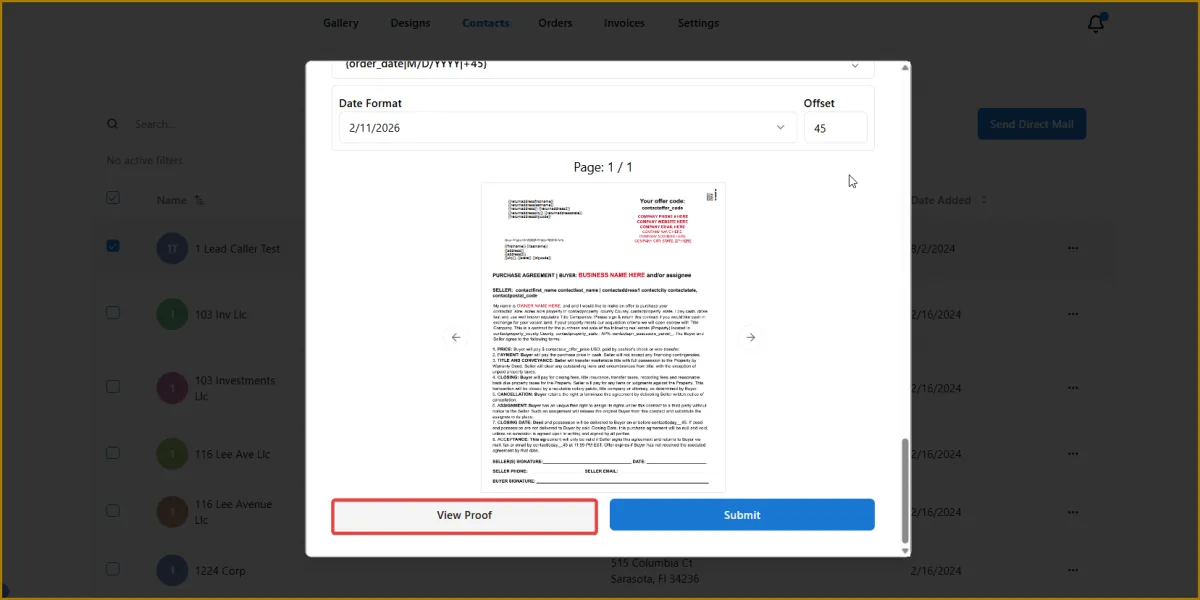
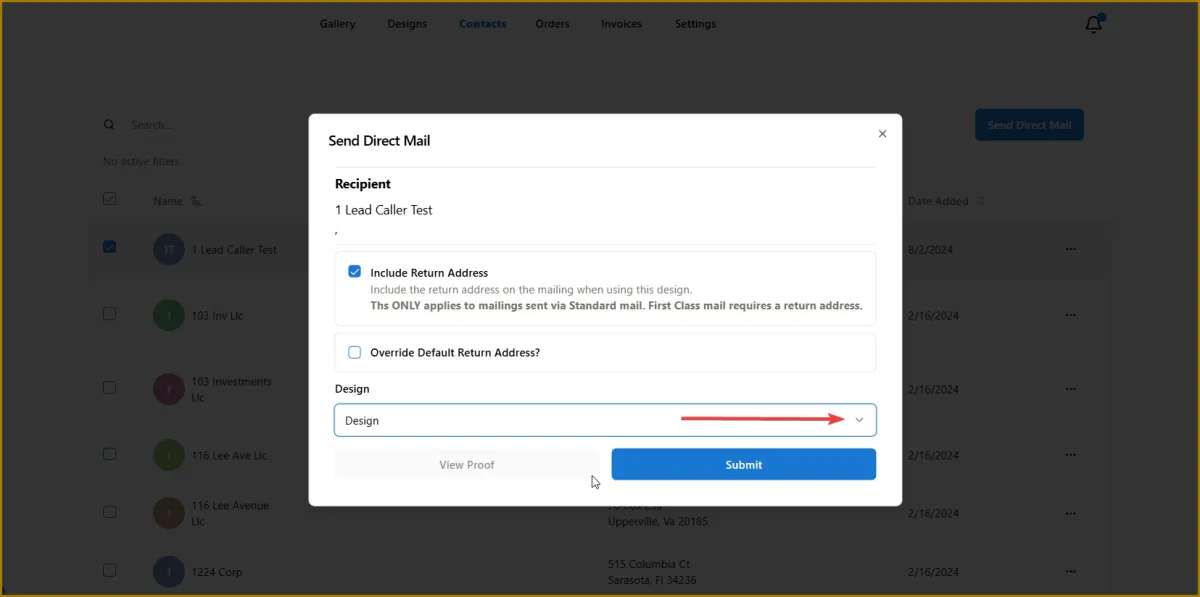
3️⃣ Select the contact you want to send to, then tap Send Direct Mail in the upper-right corner.
If you’re sending in bulk, you can also use the Filter option to create a batch.
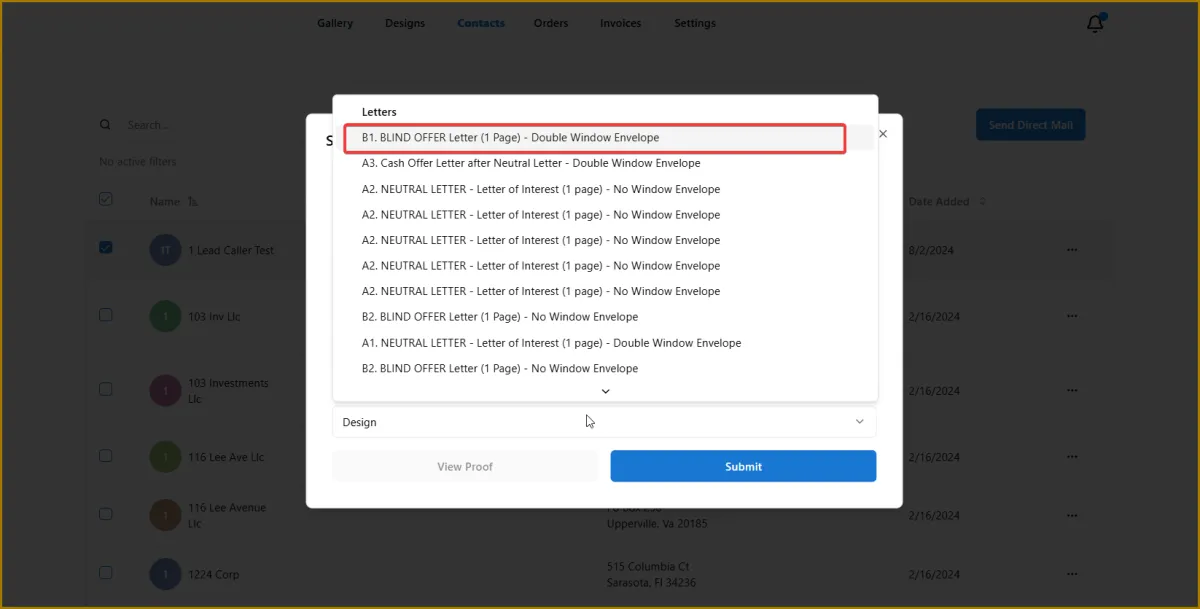
4️⃣ Click the dropdown menu to choose the design/letter you want to send.
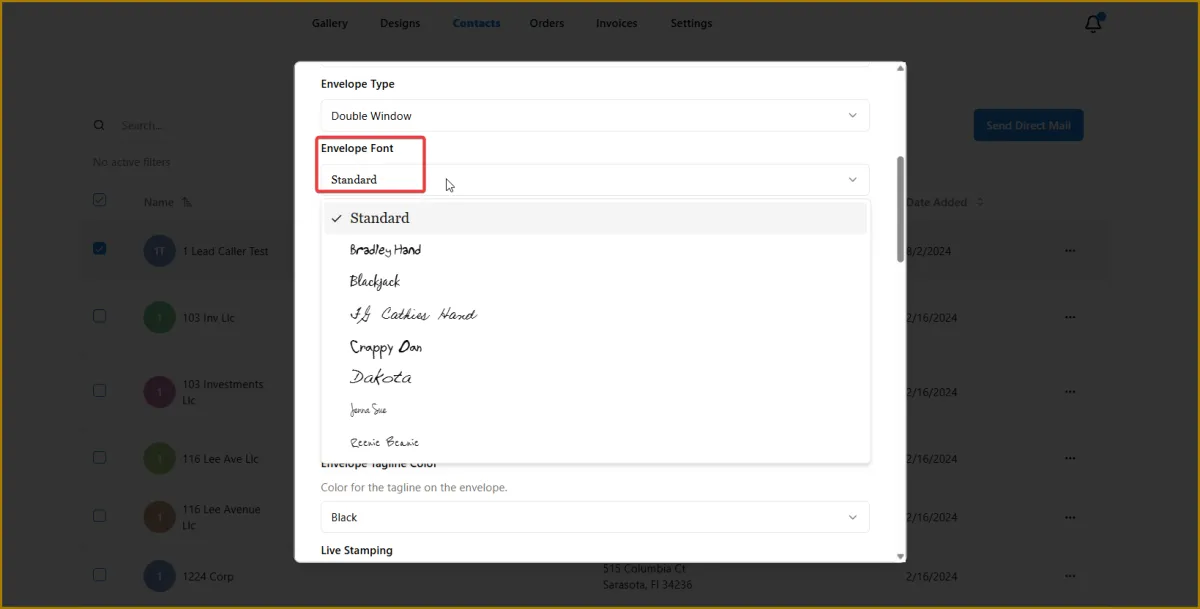
5️⃣ For handwritten fonts, open the dropdown under Envelope Font, then select the handwritten style you want to use.
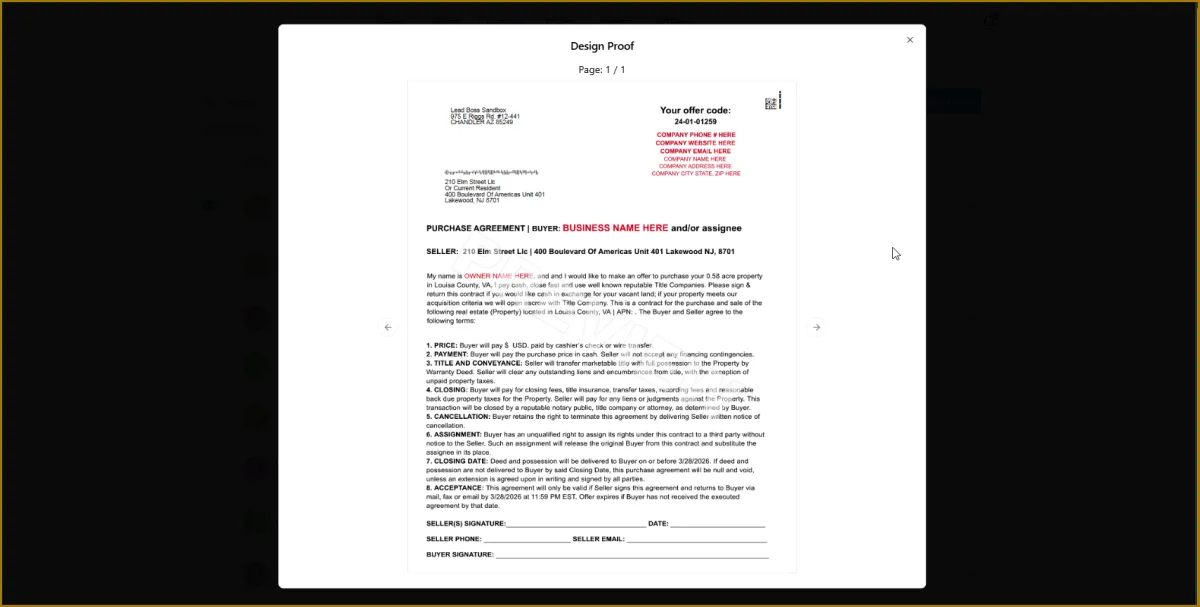
Note: Before sending, tap View Proof to review your mail.