How to Use Undo and Redo in the Page Builder
🔄 Undo / Redo
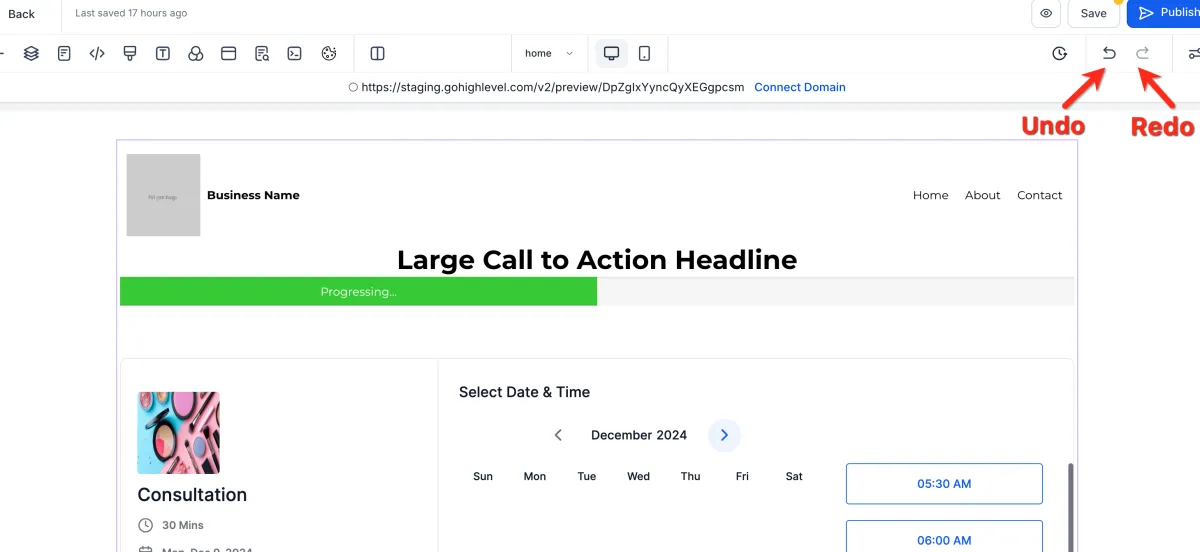
📌 Step 1: Locate Undo/Redo Controls
1️⃣ Open your page in the Page Builder Editor.
2️⃣ Go to the top-right navigation bar.
3️⃣ Click:
Undo to reverse an action
Redo to reapply an action
⚙️ Step 2: Understand What Undo/Redo Covers
Undo/Redo tracks changes across:
Page edits
Pop-ups
Global settings (Typography, Tracking Codes, etc.)
💡 This allows you to safely experiment while editing.
🔍 Step 3: Undo/Redo for Pop-Ups
1️⃣ If a change affects a pop-up:
2️⃣ The builder will automatically open the related pop-up
3️⃣ This helps you view changes in the correct context.
✏️ Step 4: Smart Text Change Handling
Text edits are grouped together intelligently
Prevents too many undo steps for every keystroke
Keeps your editing history clean and easy to manage
⚠️ Important Notes
Undo/Redo is session-based
If you refresh or leave the builder:
You may lose your undo/redo history
💡 Use Versions if you need to restore earlier saved states.